> For the complete documentation index, see [llms.txt](https://help.movin3d.com/llms.txt). Markdown versions of documentation pages are available by appending `.md` to page URLs; this page is available as [Markdown](https://help.movin3d.com/movin-tracin/movin-studio-usage-guide/live-streaming/streaming-mocap-data-into-vrchat.md).
# Streaming Mocap Data into VRChat
[**VRChat**](https://hello.vrchat.com/) is a social VR platform where users can interact in real time using custom avatars and virtual worlds.
You can stream motion capture data from MOVIN TRACIN and MOVIN Studio to VRChat in real time and apply your movements to a VRChat avatar.
{% stepper %}
{% step %}
### Choose how you want to run VRChat.
You can run VRChat directly on an HMD in **Standalone mode** or on a computer in **SteamVR mode**. The HMD connection and the IP address entered in MOVIN Studio depend on the selected mode.
* **Standalone:** Connect the HMD and the computer running MOVIN Studio to the same network.
* **SteamVR:** Connect the HMD to the computer via a wired or wireless connection so that SteamVR can detect it.
{% endstep %}
{% step %}
### Run VRChat using the selected mode.
* **Standalone:** Run the standalone version of VRChat on the HMD.
* **SteamVR:** Run SteamVR on the computer and confirm that it detects the HMD and controllers. Then run VRChat in SteamVR mode.
{% endstep %}
{% step %}
### Start streaming to VRChat from MOVIN Studio.
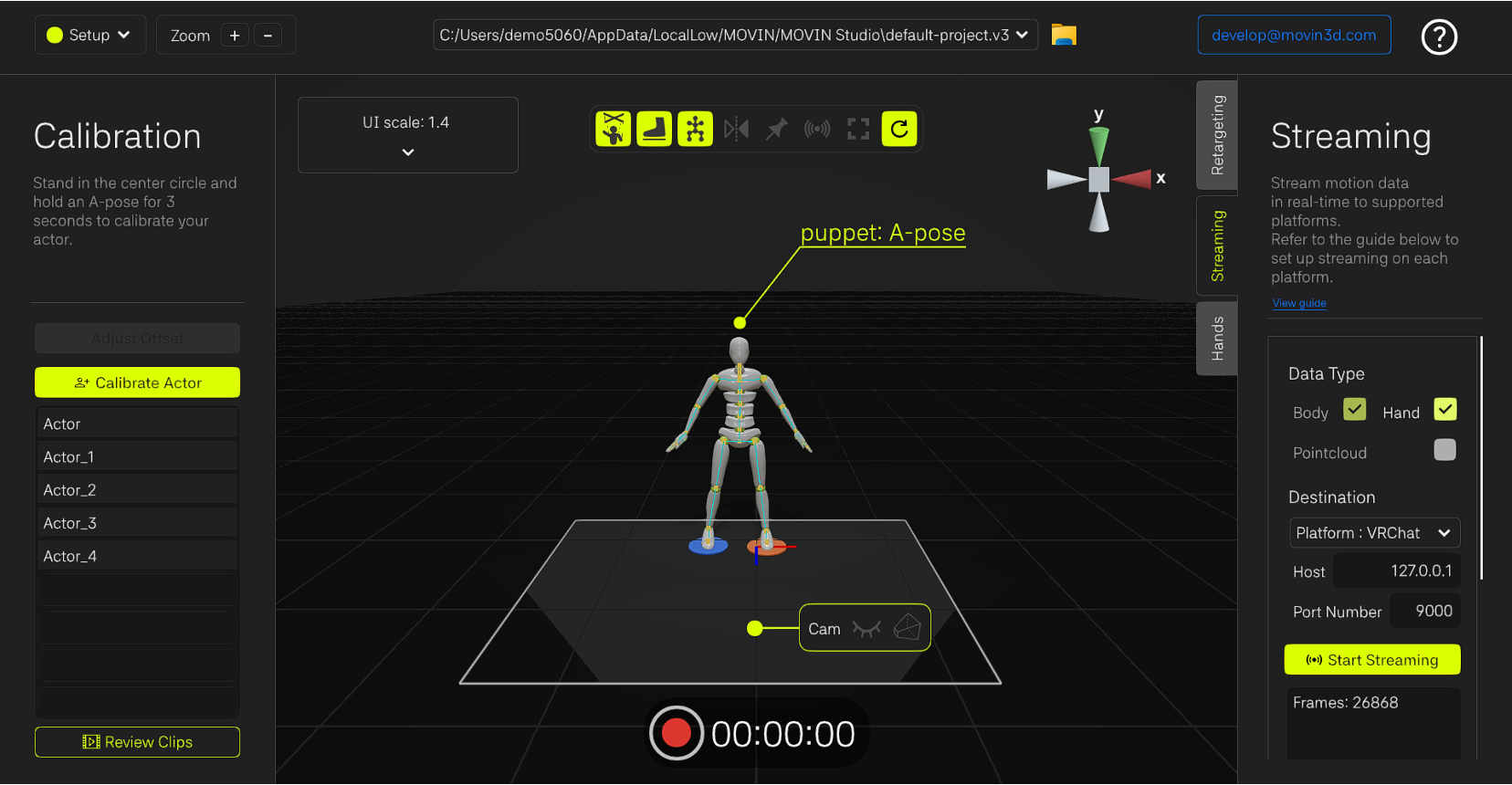
* In the Streaming tab of MOVIN Studio, set Platform to VRChat.
* Set Host according to the mode selected above.
* **Standalone:** Enter the IP address of the HMD. On Meta Quest, you can find the IP address in the details of the connected Wi-Fi network.
* **SteamVR:** Enter `127.0.0.1` because VRChat and MOVIN Studio are running on the same computer.
* Confirm that Port Number is set to `9000`, and then click Start Streaming.
{% endstep %}
{% step %}
### Enable OSC in VRChat.
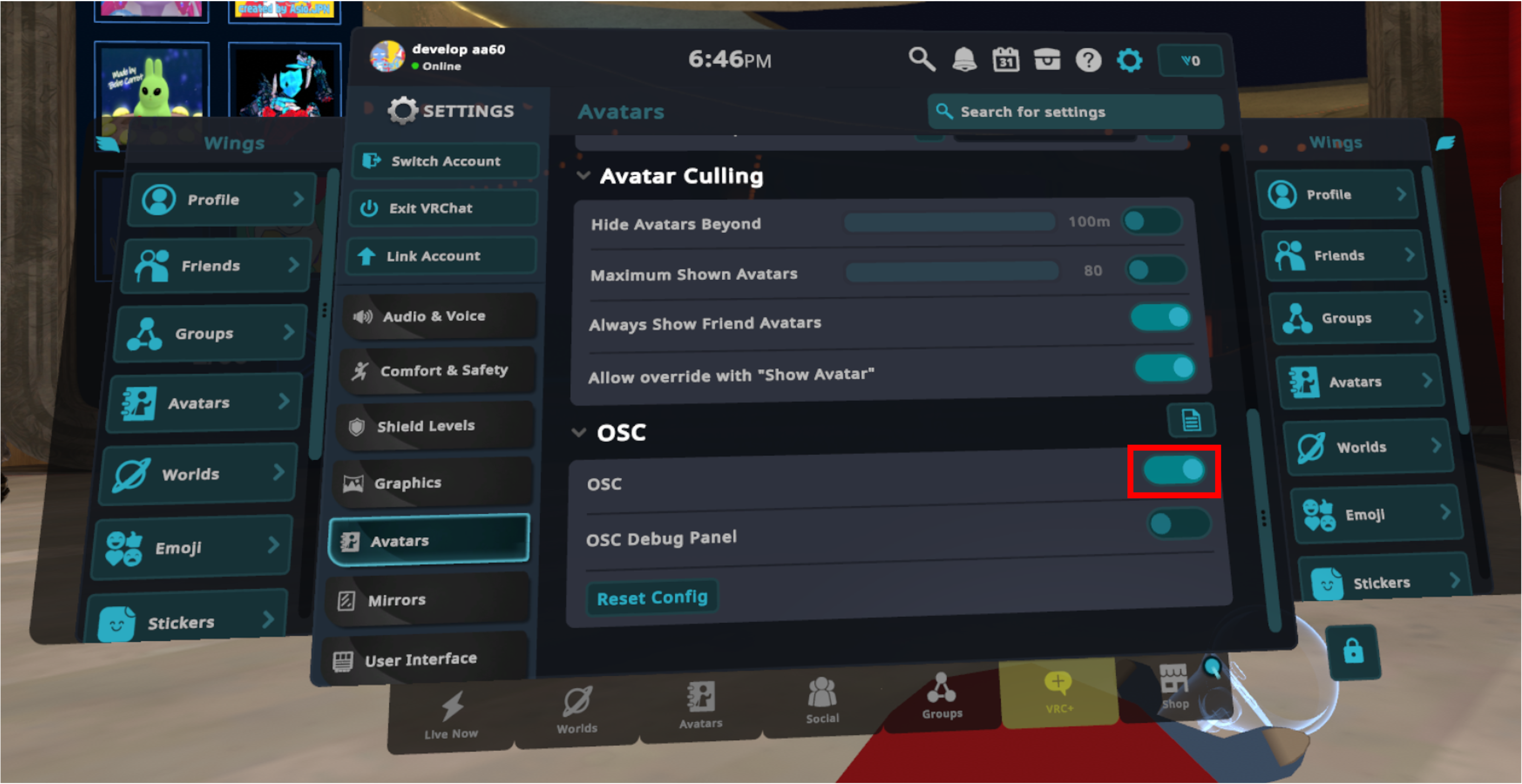
* In VRChat, go to Settings > Avatars and enable OSC.
* Once OSC is enabled, VRChat can receive motion data sent from MOVIN Studio.
{% endstep %}
{% step %}
### Set your actual height in VRChat.
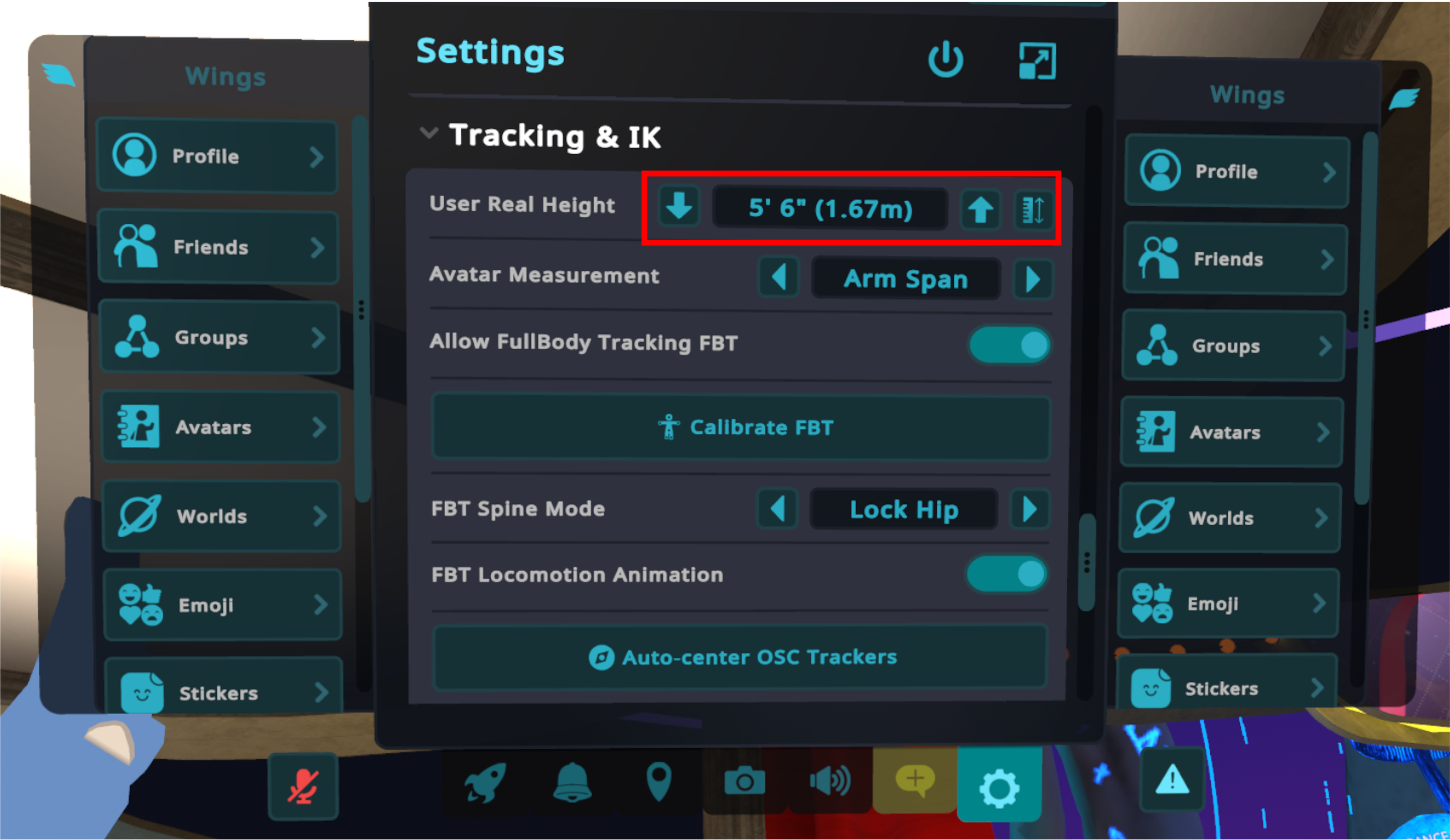
* In Tracking & IK settings, adjust User Real Height to match your actual height.
* You can also stand upright and look straight ahead, then select the Measure Height button (ruler icon) to measure your height automatically.
* If the automatic measurement differs significantly from your actual height, adjust the floor level in the HMD's play space settings to match the actual floor, and then measure again.
{% endstep %}
{% step %}
### Calibrate in VRChat.
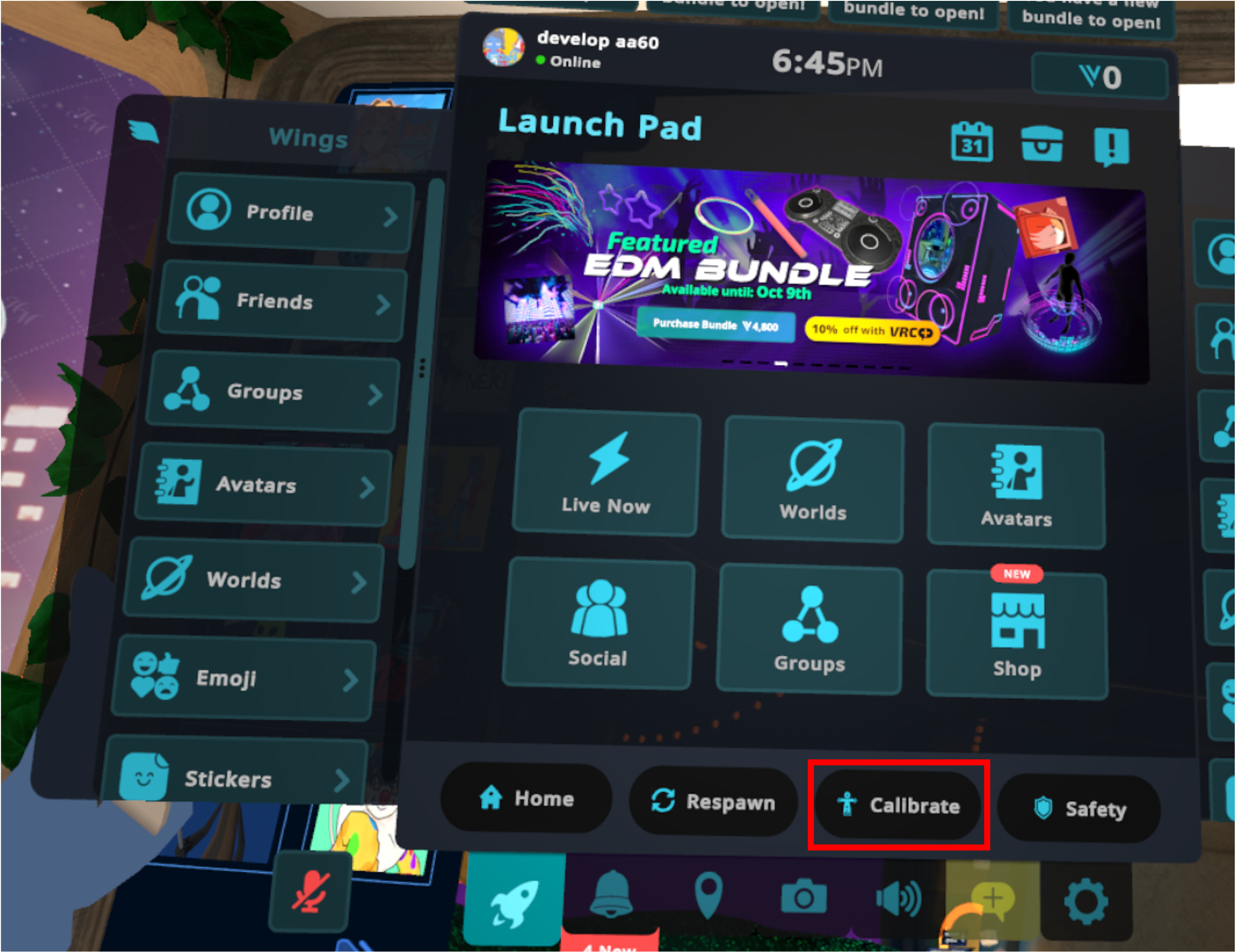
* Select Calibrate from the VRChat menu.
* Face forward, hold the controllers pointing upward, and extend your arms to the sides in a T-pose.
* Adjust your position and posture until the dots displayed at your ankles align as closely as possible with the avatar's feet.
* If the position or orientation of the HMD and controllers does not align with the trackers received through OSC, adjust the alignment using one of the following methods:
* Select Auto-center OSC Trackers in the VRChat settings to align the OSC tracker positions.
\*
```
```
* You can also adjust Global Offset in MOVIN Studio to align the positions.
* Once everything is aligned, pull the controller trigger to complete the calibration.
* After calibration, slowly move your arms and legs to confirm that the avatar follows your movements correctly.
{% endstep %}
{% endstepper %}
---
# Agent Instructions
This documentation is published with GitBook. GitBook is the documentation platform designed so that both humans and AI agents can read, navigate, and reason over technical content effectively. Learn more at gitbook.com.
## Querying This Documentation
If you need additional information that is not directly available in this page, you can query the documentation dynamically by asking a question.
Perform an HTTP GET request on the current page URL with the `ask` query parameter, and the optional `goal` query parameter:
```
GET https://help.movin3d.com/movin-tracin/movin-studio-usage-guide/live-streaming/streaming-mocap-data-into-vrchat.md?ask=&goal=
```
`ask` is the immediate question: it should be specific, self-contained, and written in natural language.
`goal` is optional and describes the broader end goal you are ultimately trying to accomplish on behalf of the user. GitBook uses it to tailor the answer towards what is most useful for that goal.
The response will contain a direct answer to the question and relevant excerpts and sources from the documentation.
Use this mechanism when the answer is not explicitly present in the current page, you need clarification or additional context, or you want to retrieve related documentation sections.