Hands Motion Capture (Beta)
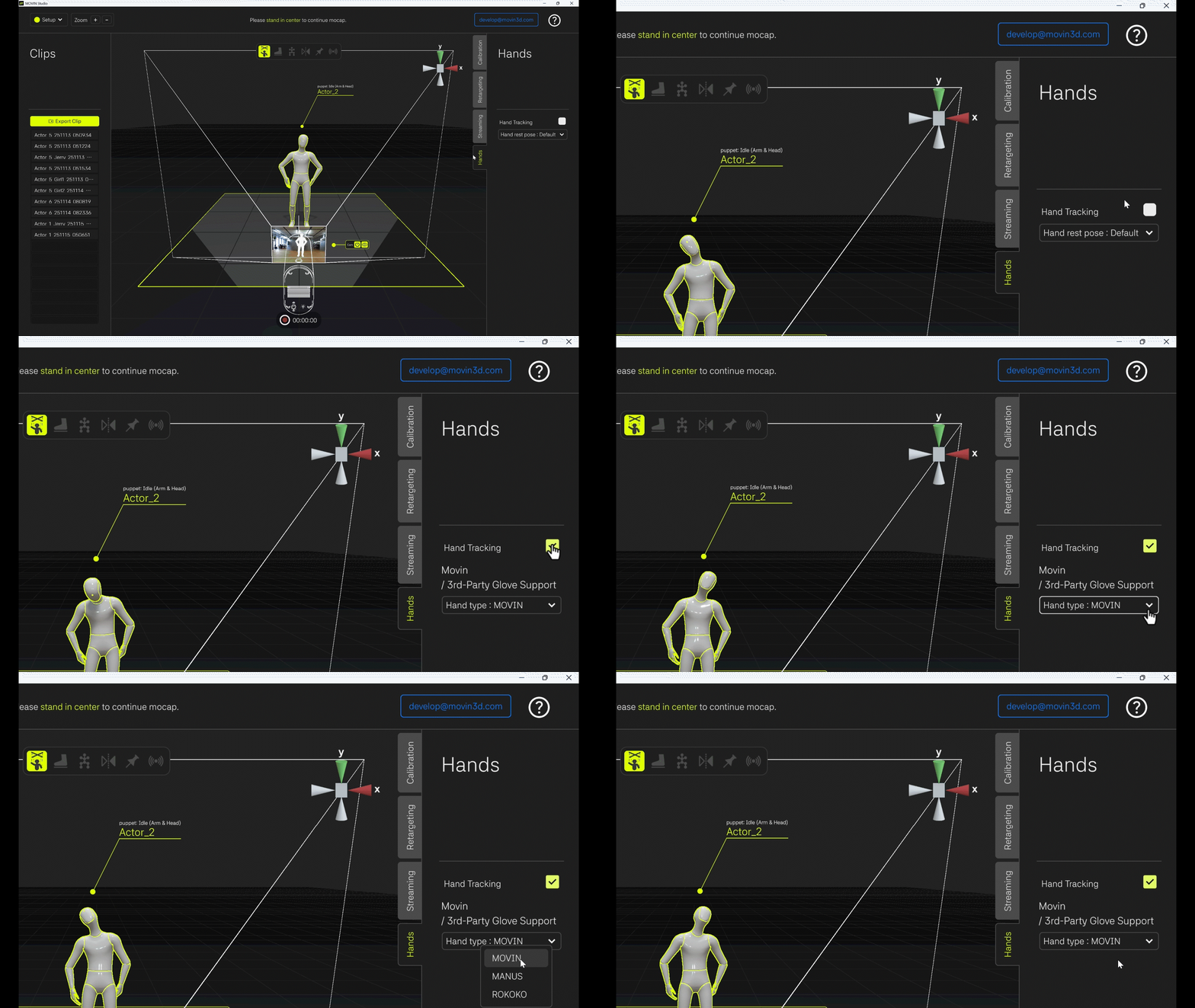
In MOVIN Studio, the hands motion capture feature has been newly added in beta. With this feature, you can track wrist and finger movements in real time using only the MOVIN TRACIN device.
Hands Motion Capture
(MOVIN Studio v2.1.0 or later) If Hand Tracking is not working, please check the camera view.
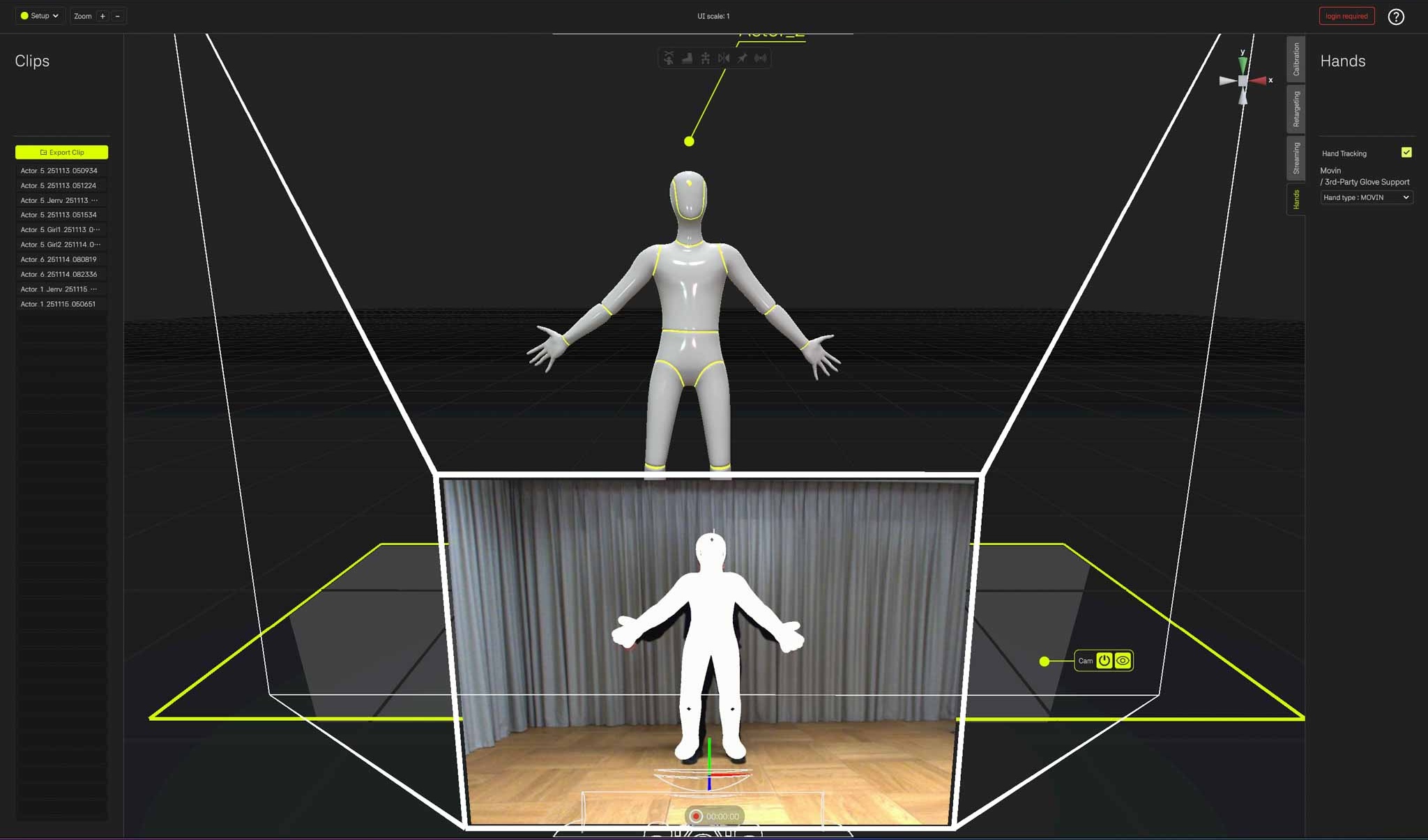
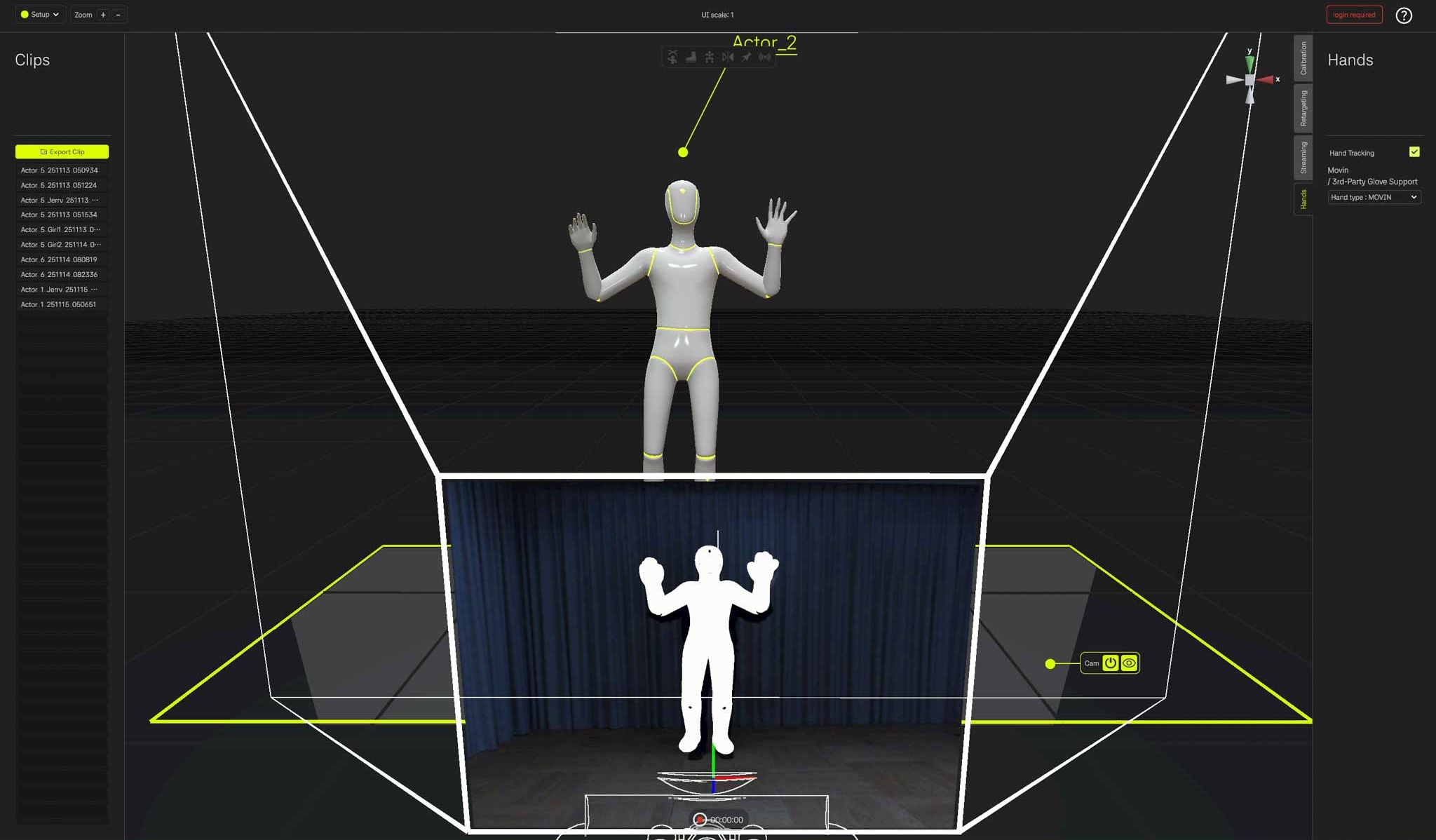
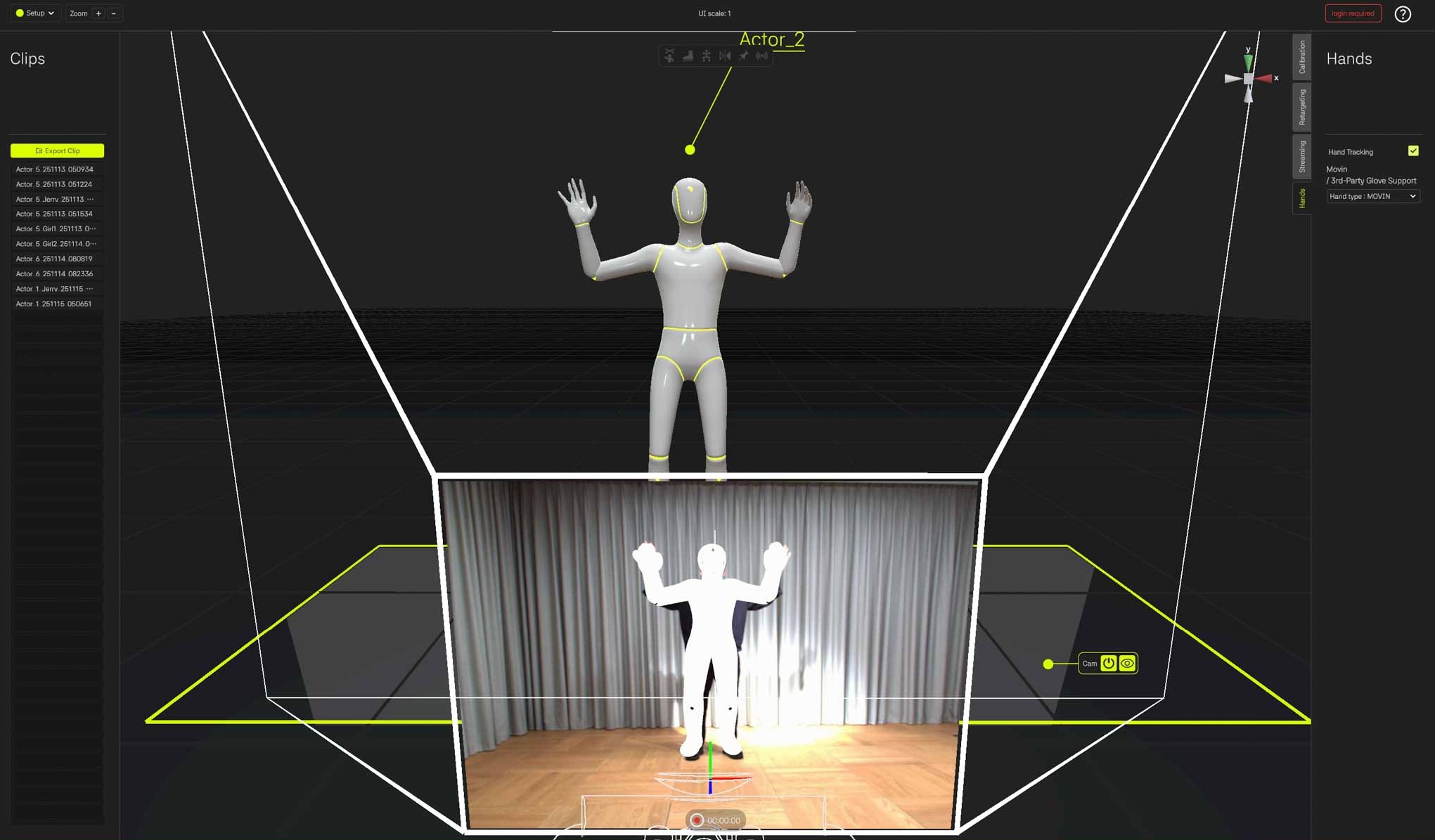
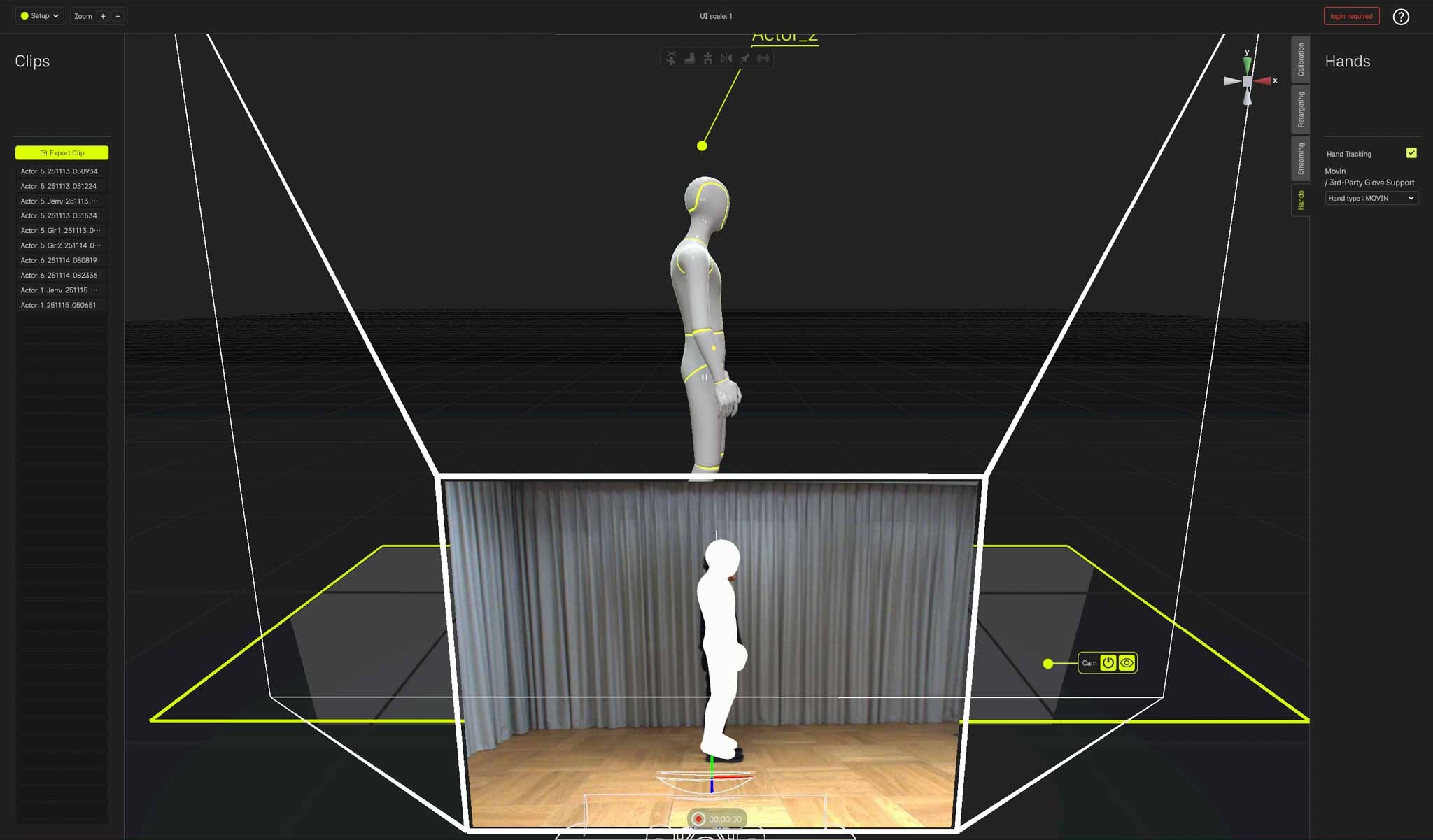
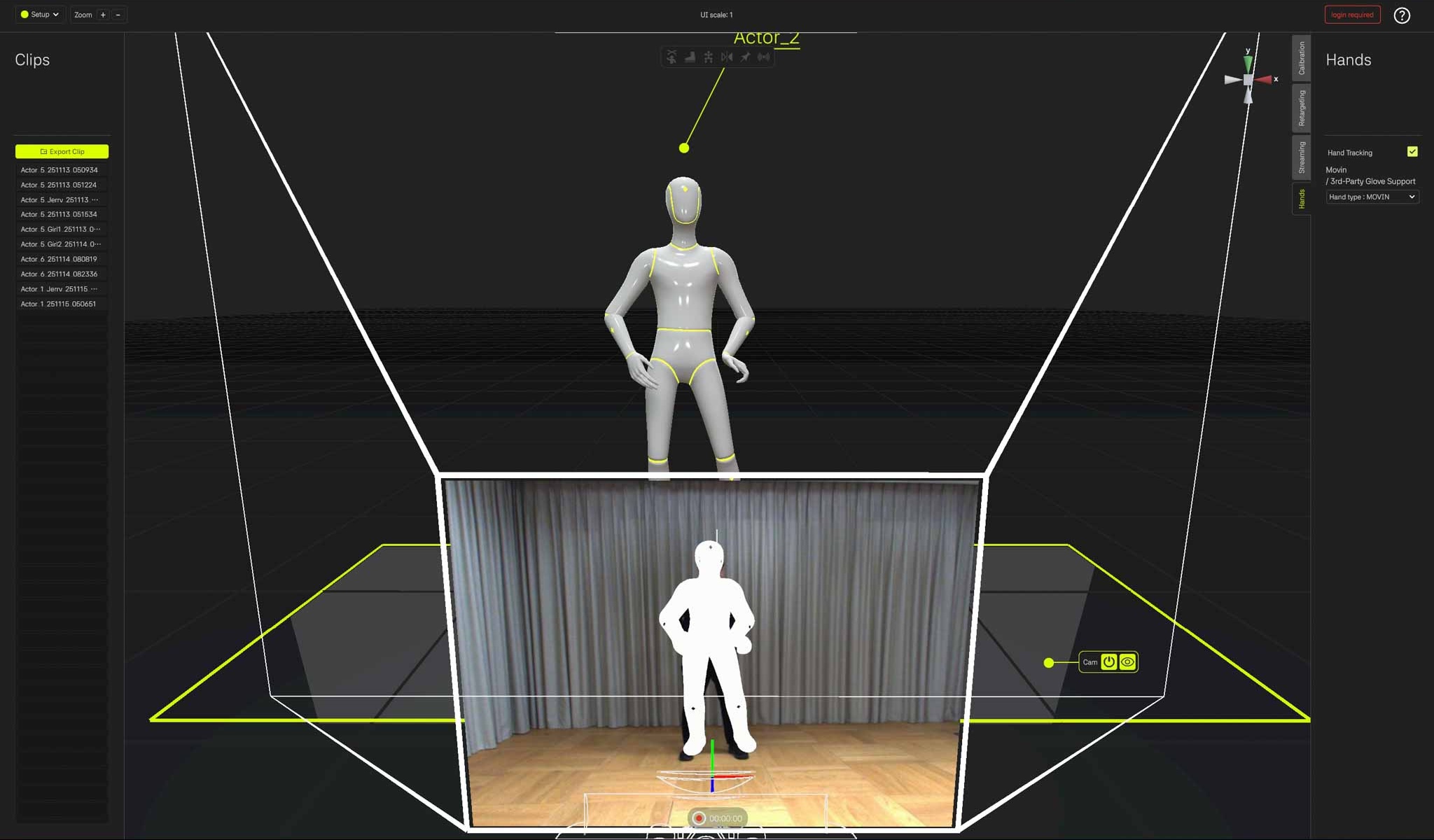
In MOVIN Studio v2.1.0 or later, when hands are detected, their positions are displayed as blue and red bounding boxes in the camera view.
If hand motion capture is enabled but not functioning, first check whether the blue and red boxes appear in the camera view.
If the blue and red boxes are not visible, the device may not be detecting your hands due to lighting conditions. Please refer to Important Notes and adjust the lighting environment accordingly.
Important Notes
Hands Motion Capture works only when the hands are positioned within 1~4 meters of the device and are visible within the camera's field of view (FoV).
If the actor is outside the camera’s FoV, the MOVINMan will appear dimmed.
For best accuracy, we recommend using the tracking feature within 1.5–3.5 meters from the device.
Optimal performance is achieved when a single actor is within the camera’s FoV.
Tracking accuracy may decreases in low light environments or when wearing dark-colored clothing.
Please use a bright background and wear clothing that contrasts with your hands for better detection.
For best results, make sure your hands and wrists remain clearly visible and that you stand directly facing the camera.
If the camera shakes or vibrates, hands motion capture may become unstable.

Hands Motion Capture Shooting Environment
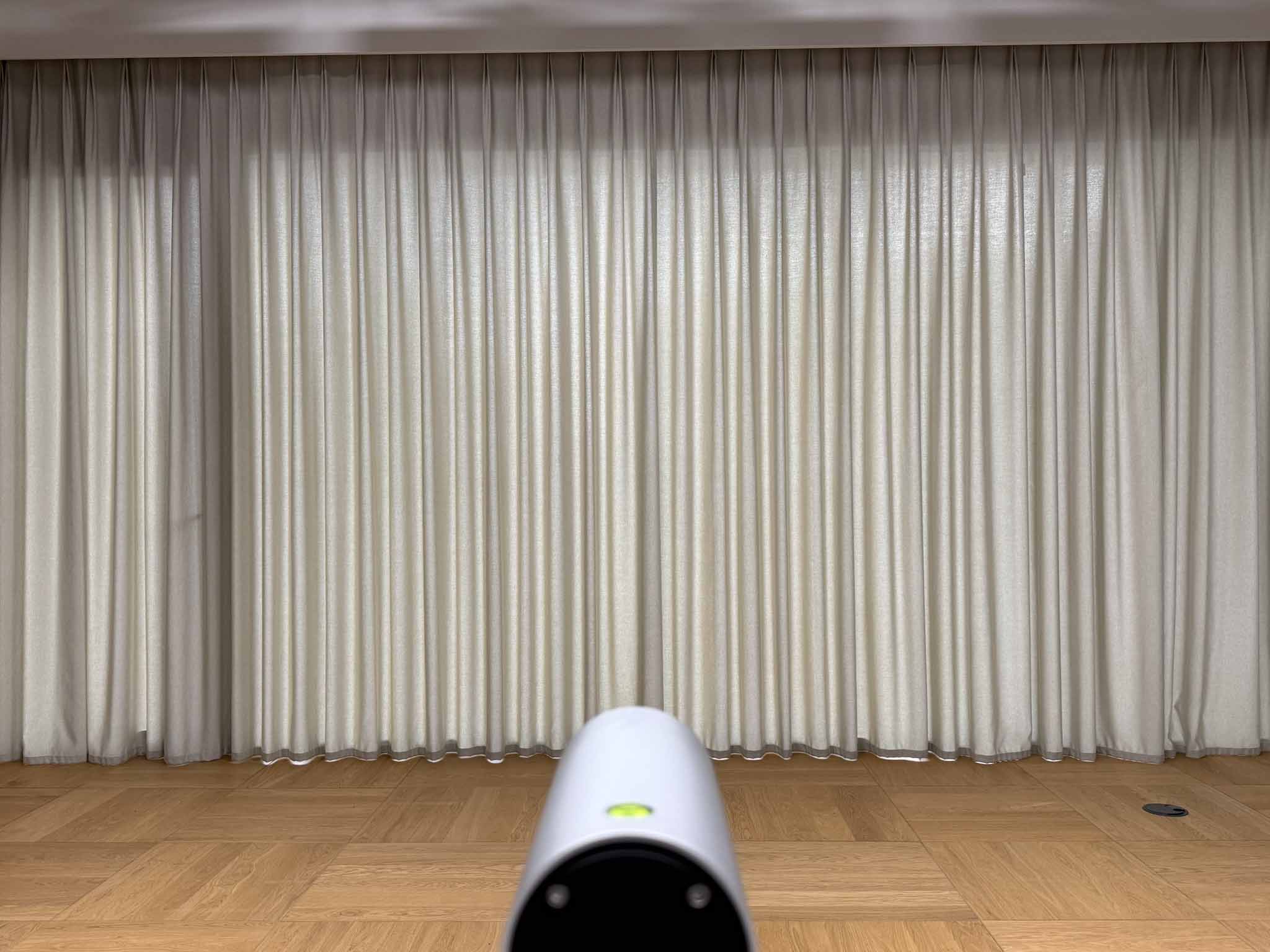
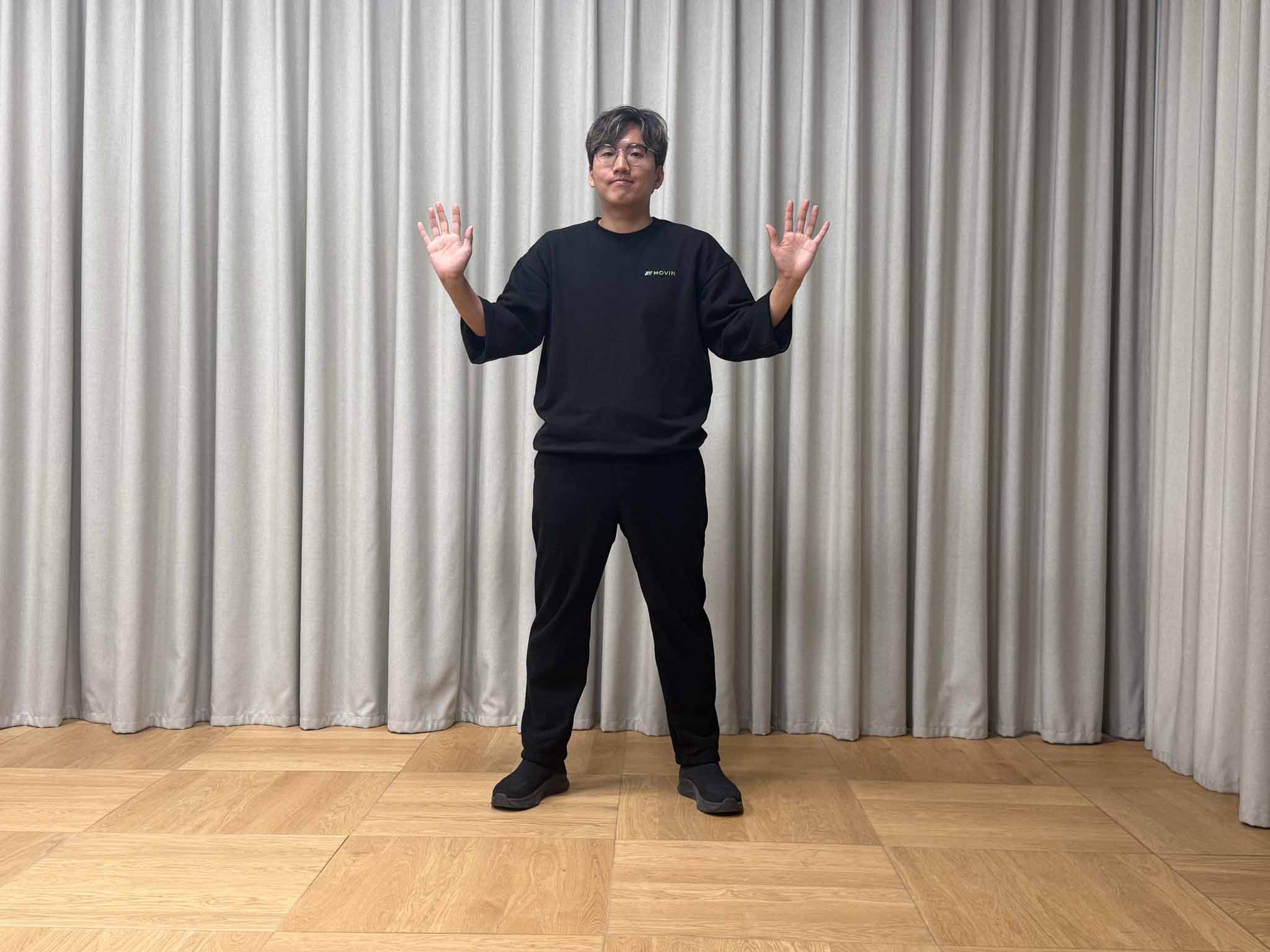
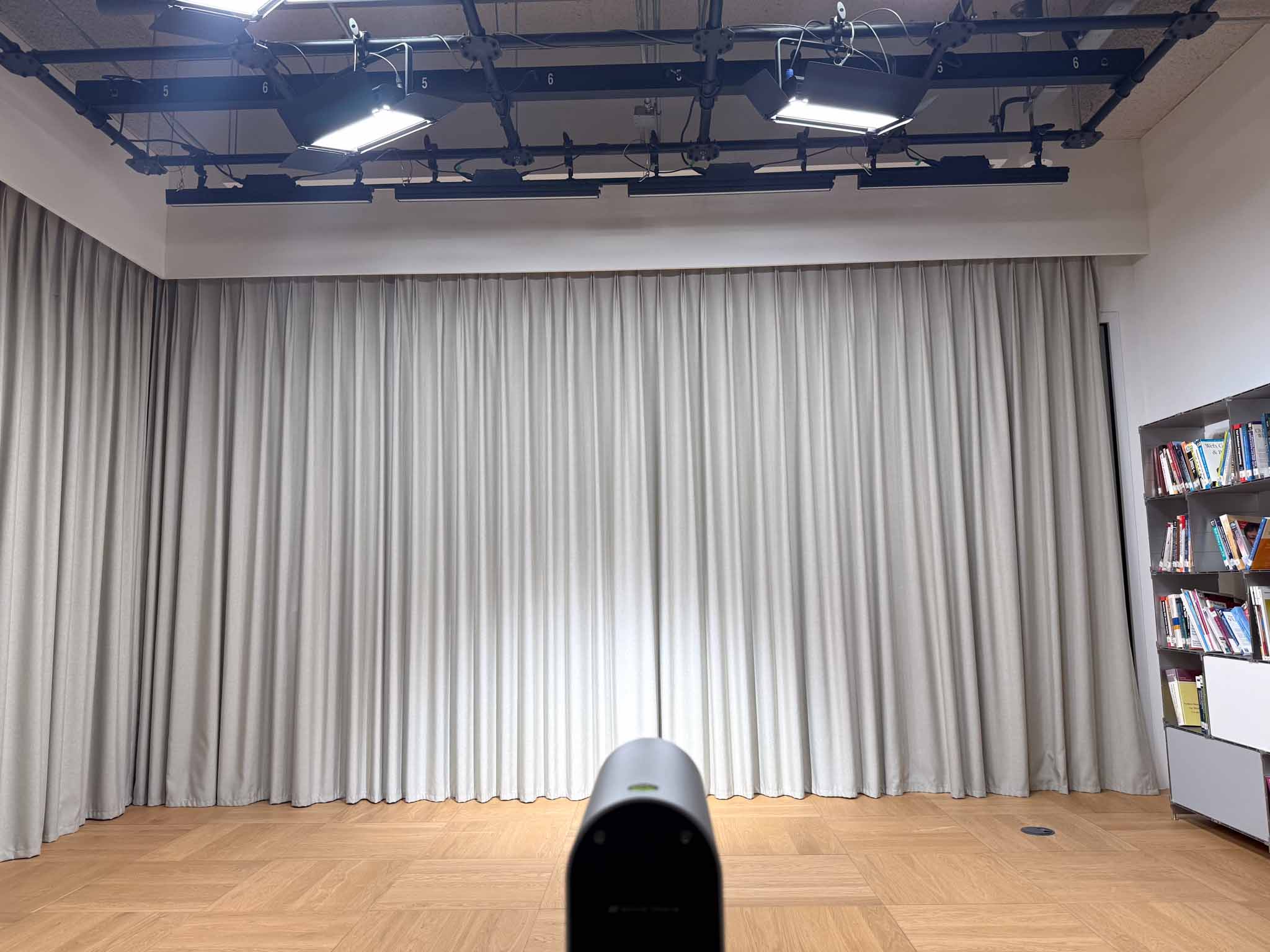
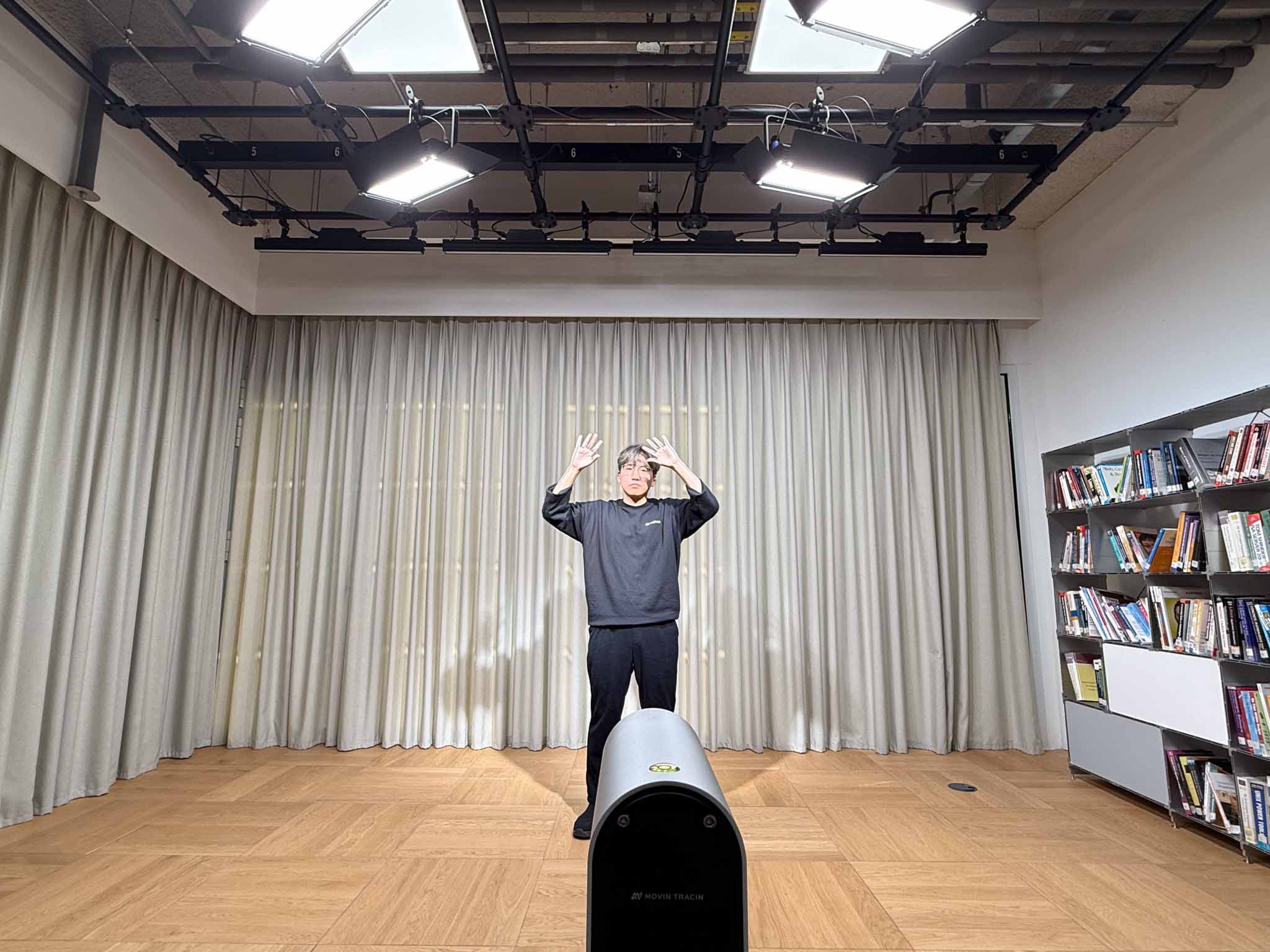
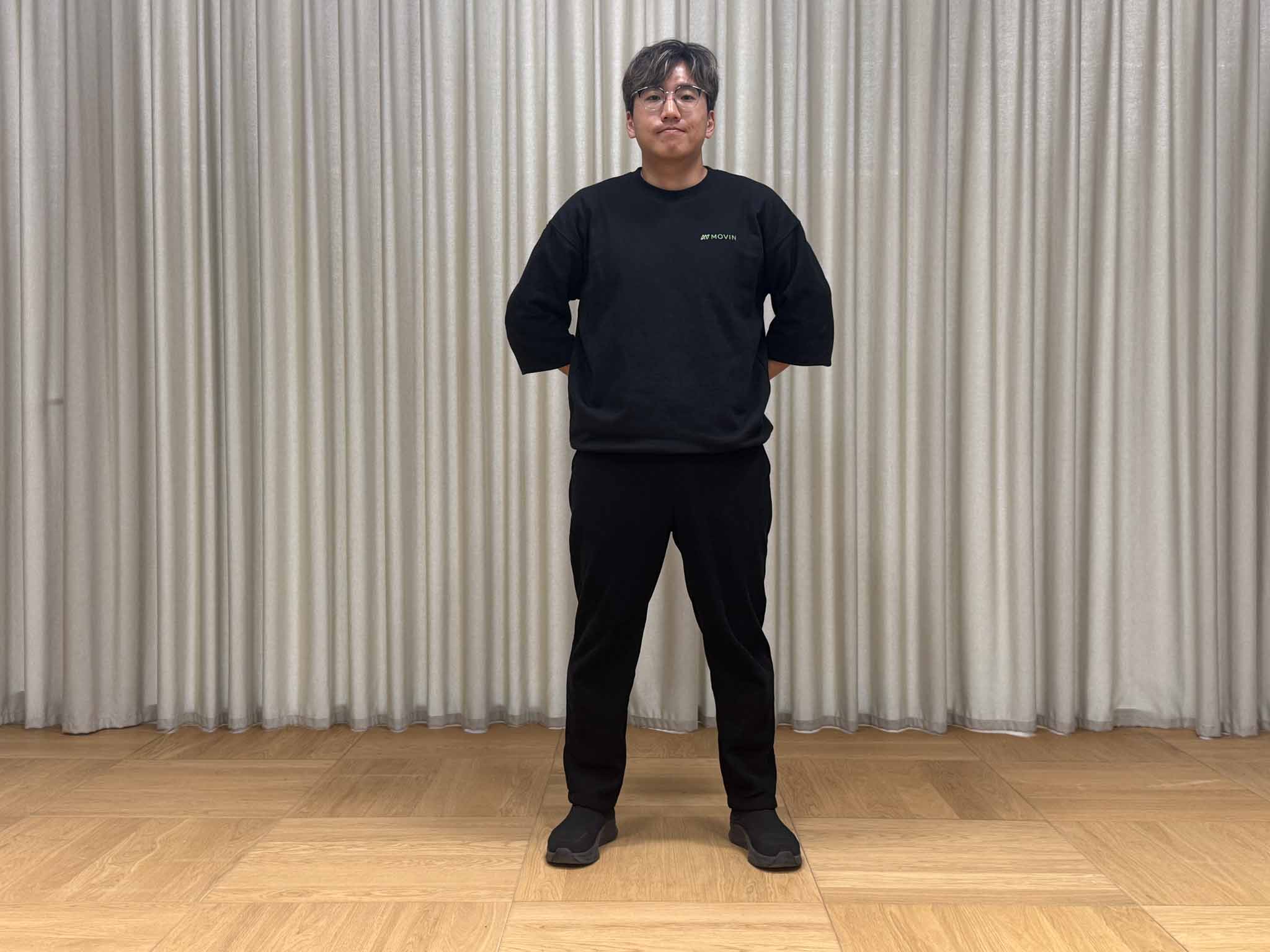
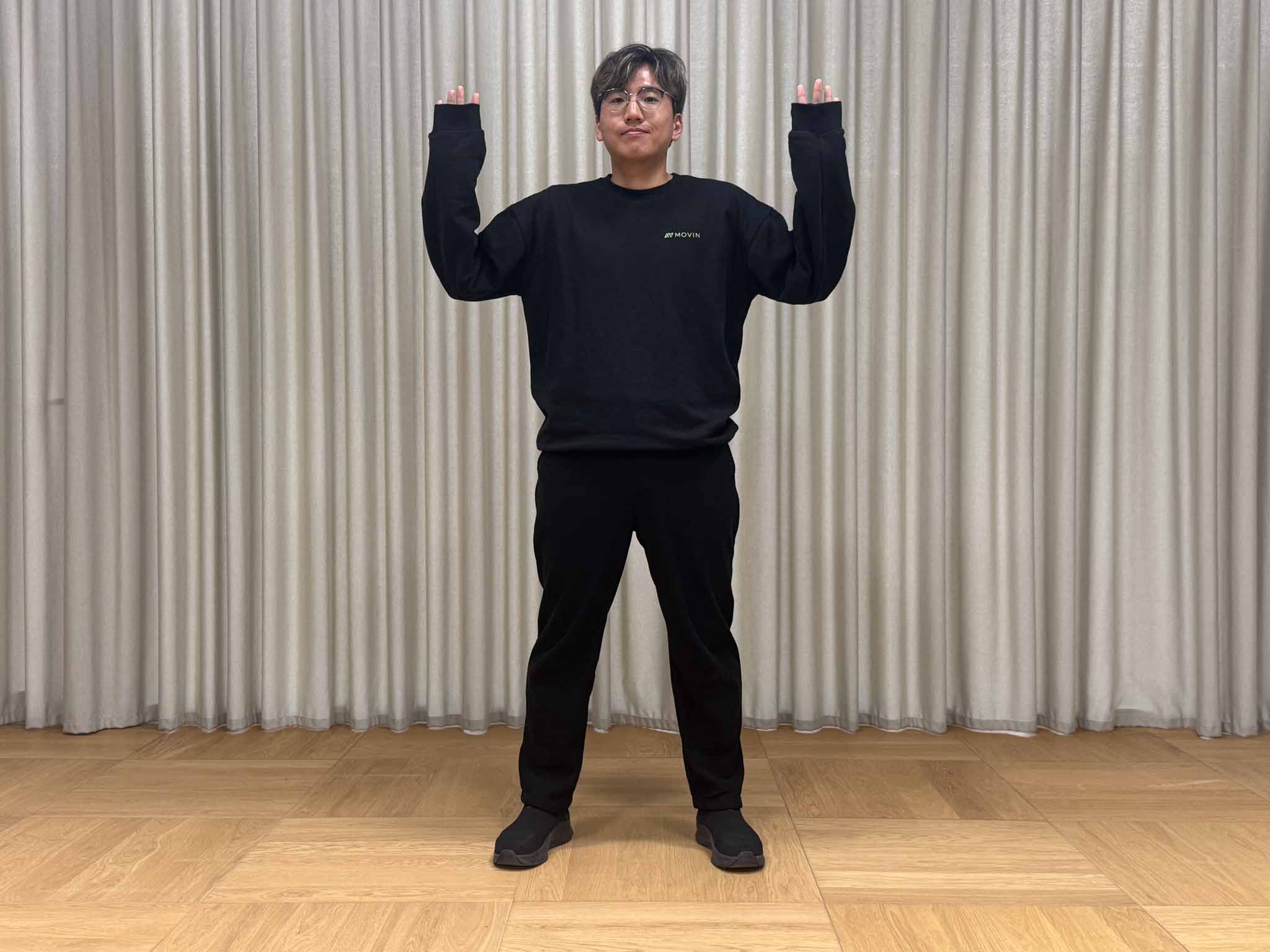
Hands Motion Capture uses a camera-based approach rather than LiDAR, so proper lighting and FOV (Field of View) conditions are required. The entire body, including the hands, must remain within the camera’s field of view. Please refer to the sample photos below and set up your environment accordingly.
Lighting
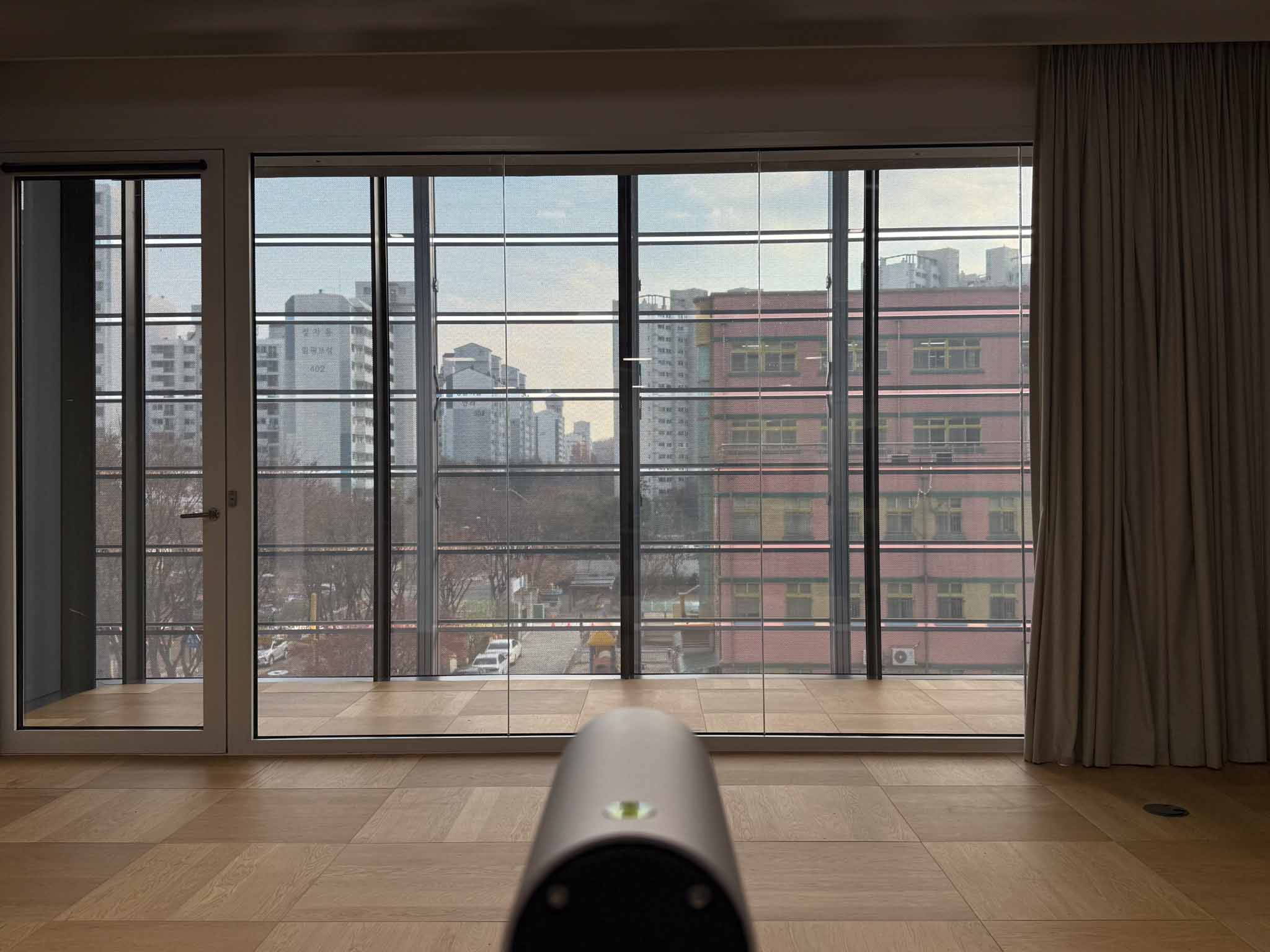
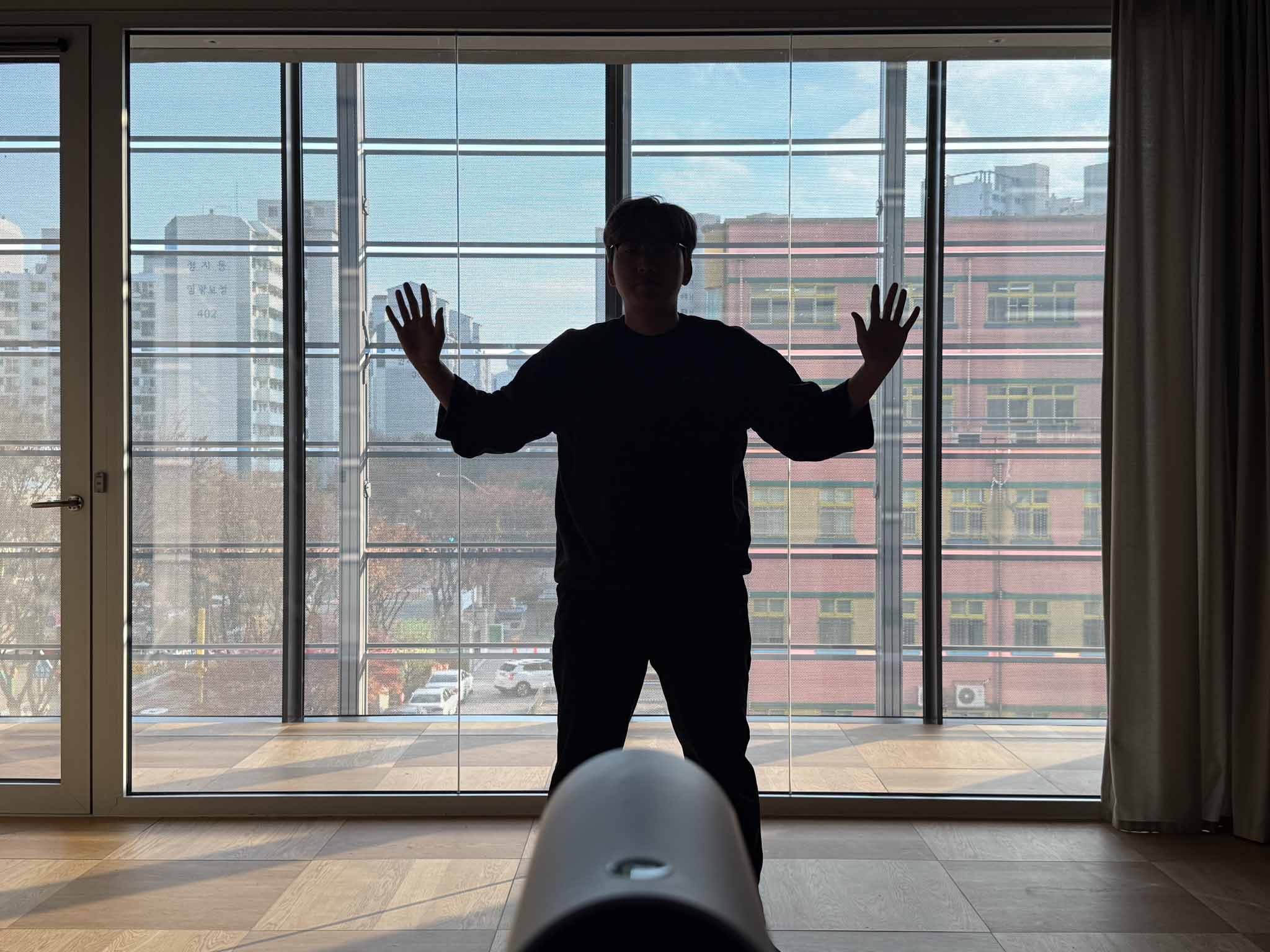
Human eyes adapt quickly to brightness, so a scene may feel “bright enough” to you while the camera still struggles to clearly recognize the contour of the hands. Tracking accuracy may degrade in the following environments:
When the overall ambient light is too low and the hand contour becomes blurry
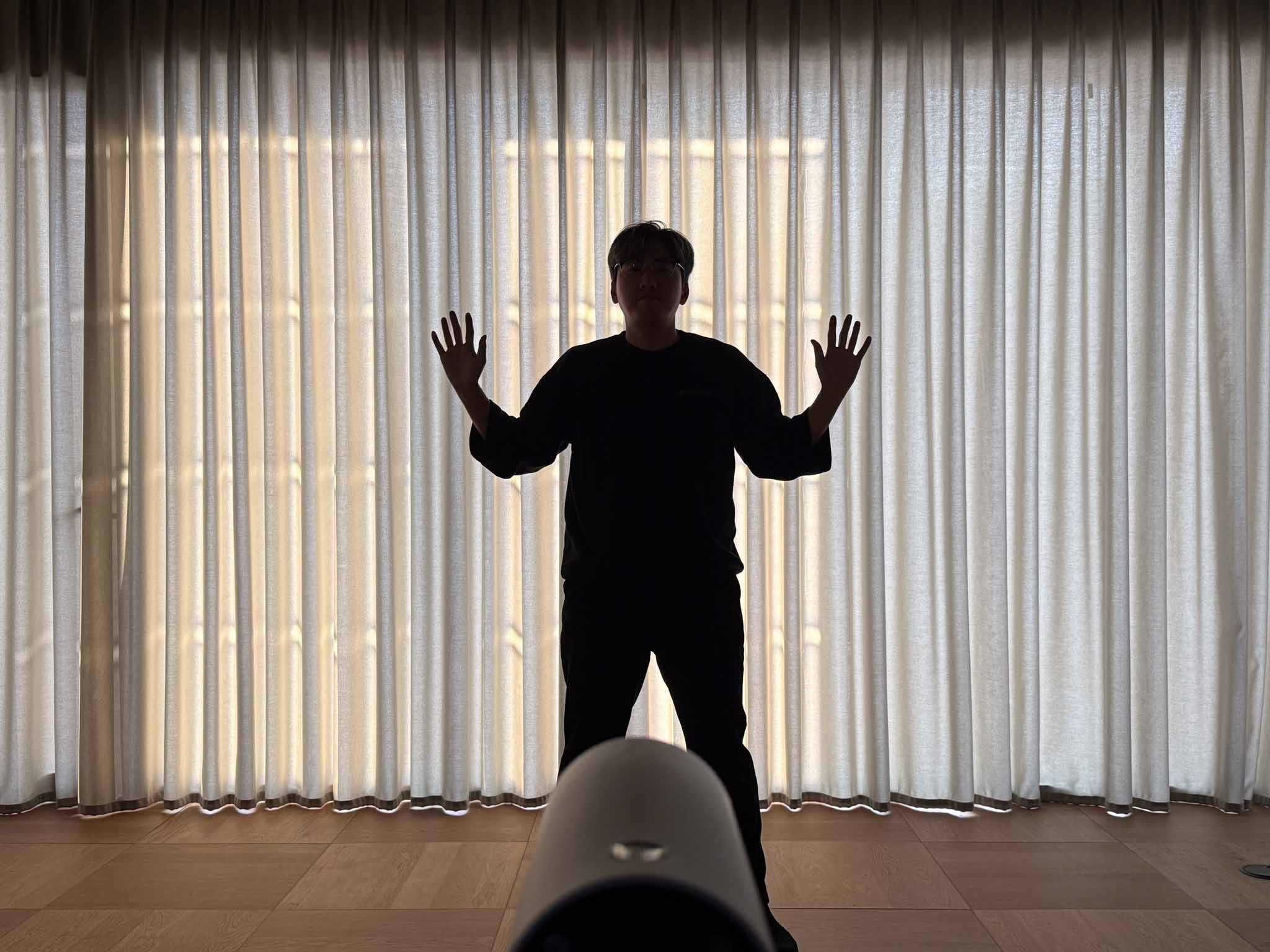
When strong backlight, floor reflections, or polarized lighting cause the hands to be overly bright
When there is significant brightness contrast between the upper and lower parts
If tracking appears unstable, adjust the lighting or use curtains so that the hand contours remain clearly visible to the camera.


Ideal case


Lighting Conditions That Require Adjustment


Camera Field of View(FoV) & Occlusion
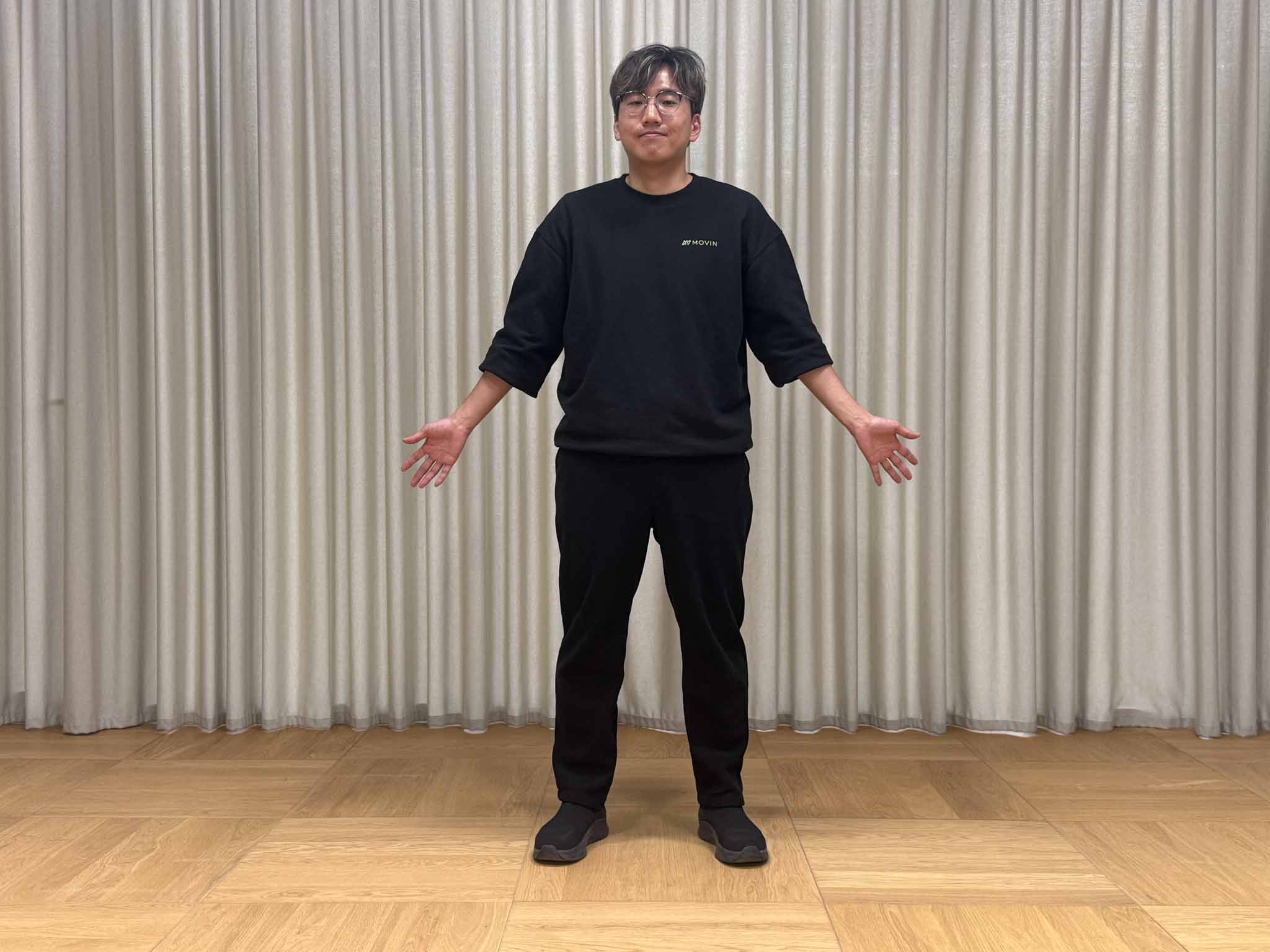
Proper Use


Hands Motion Capture operates based on the camera’s Field of View (FoV) inside the MOVIN TRACIN device, which is installed approximately 85 cm above the ground. Because of differences in each actor’s height, arm length, and hand position, the optimal distance may vary naturally.
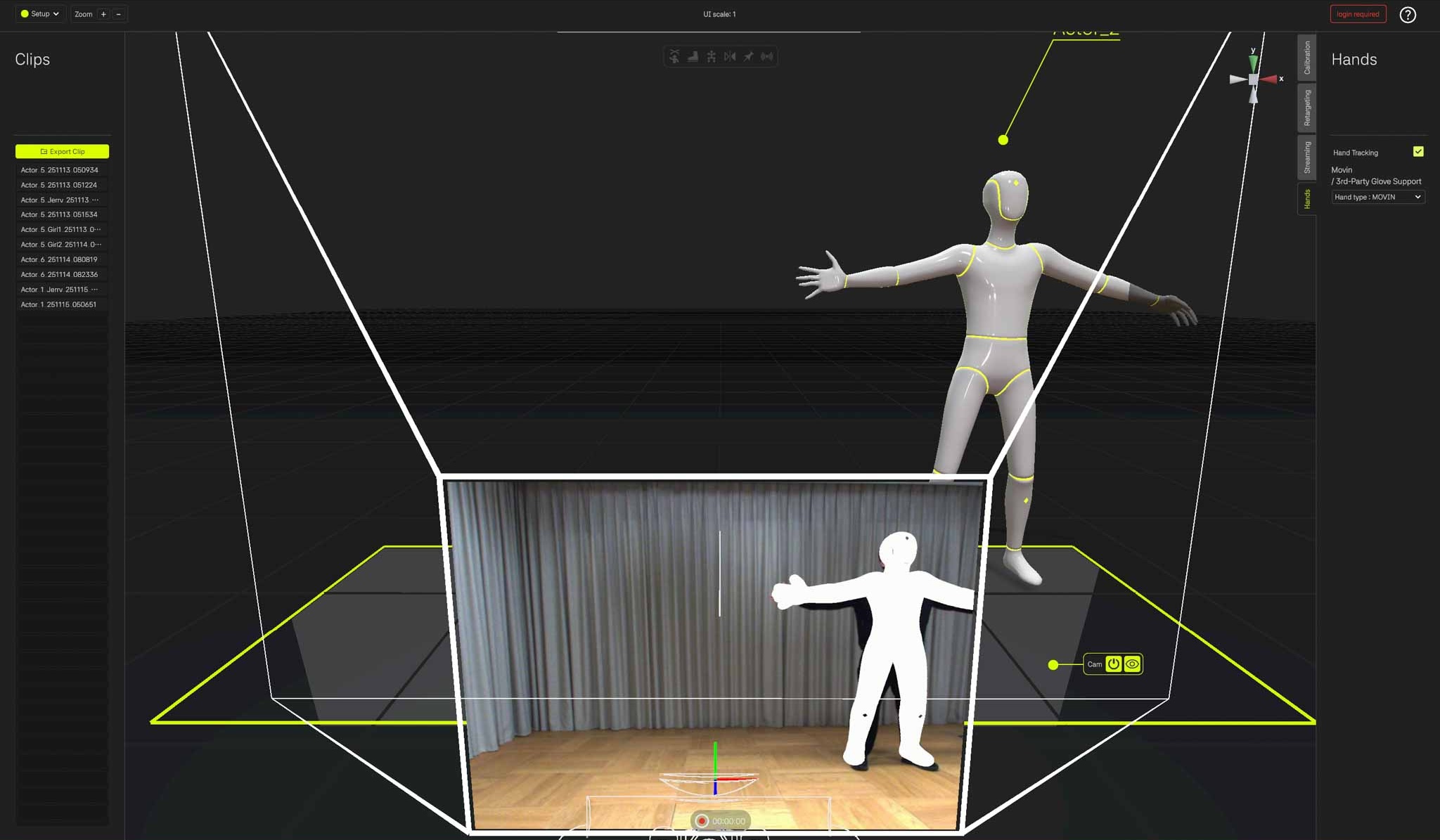
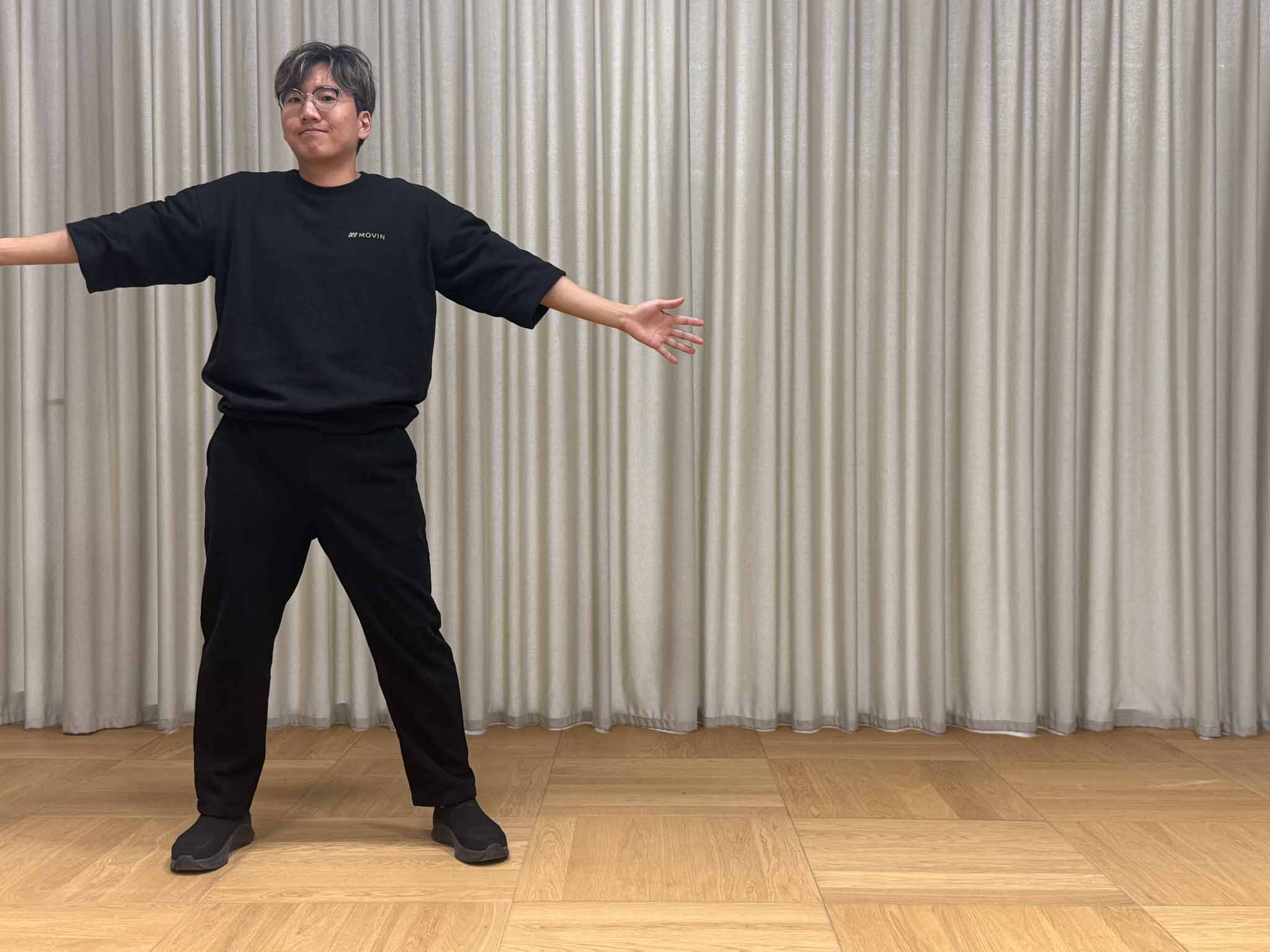
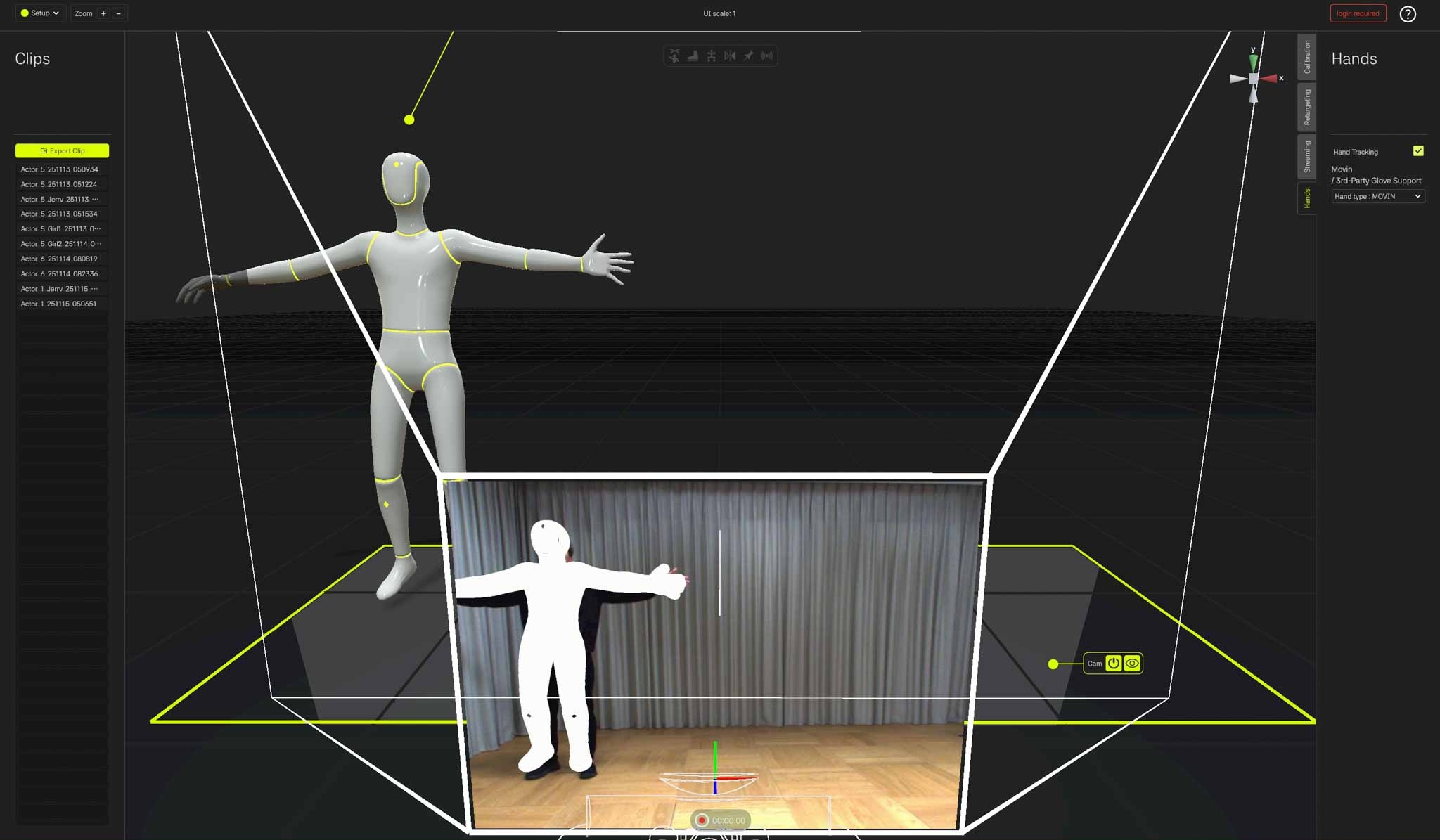
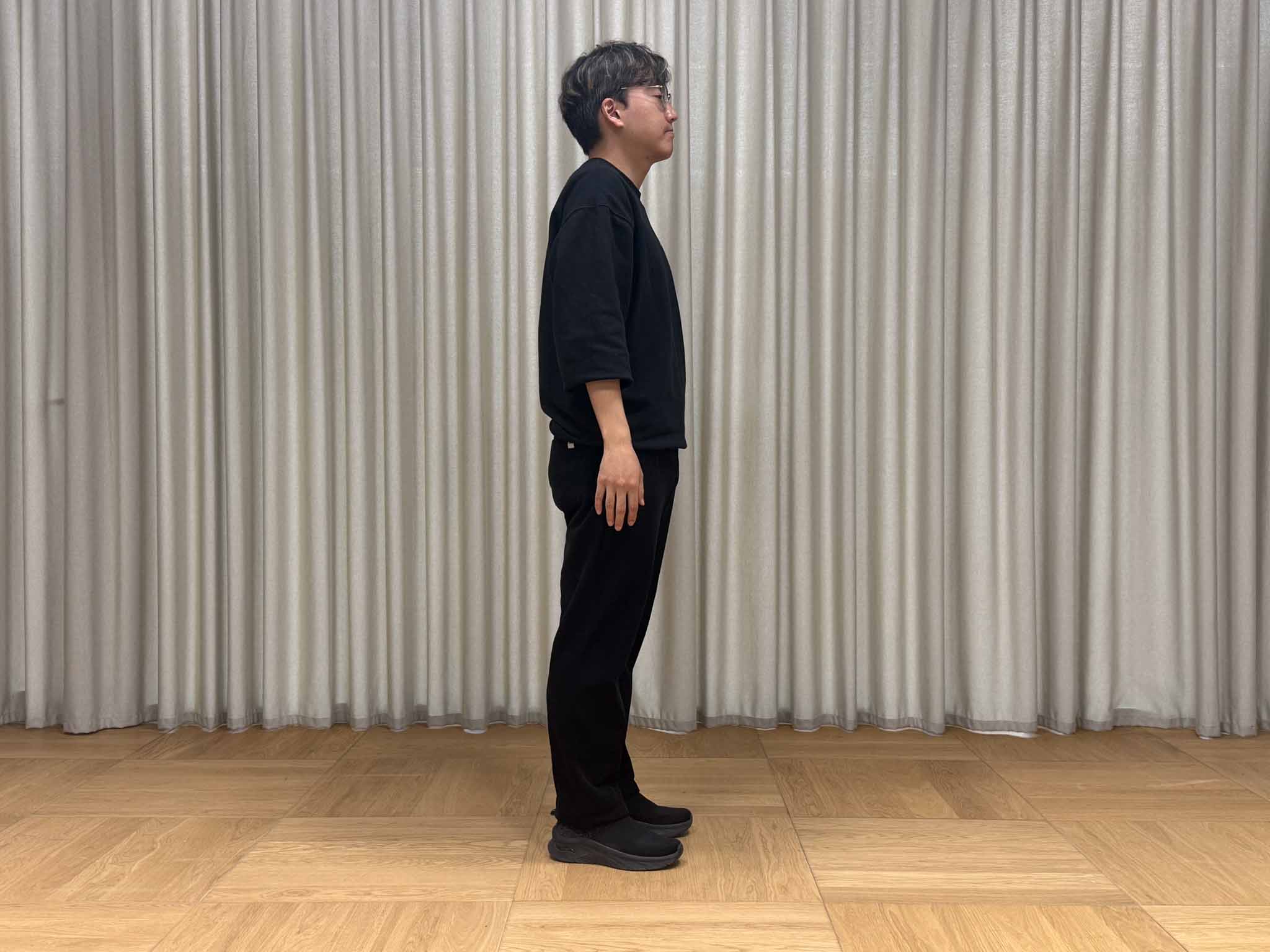
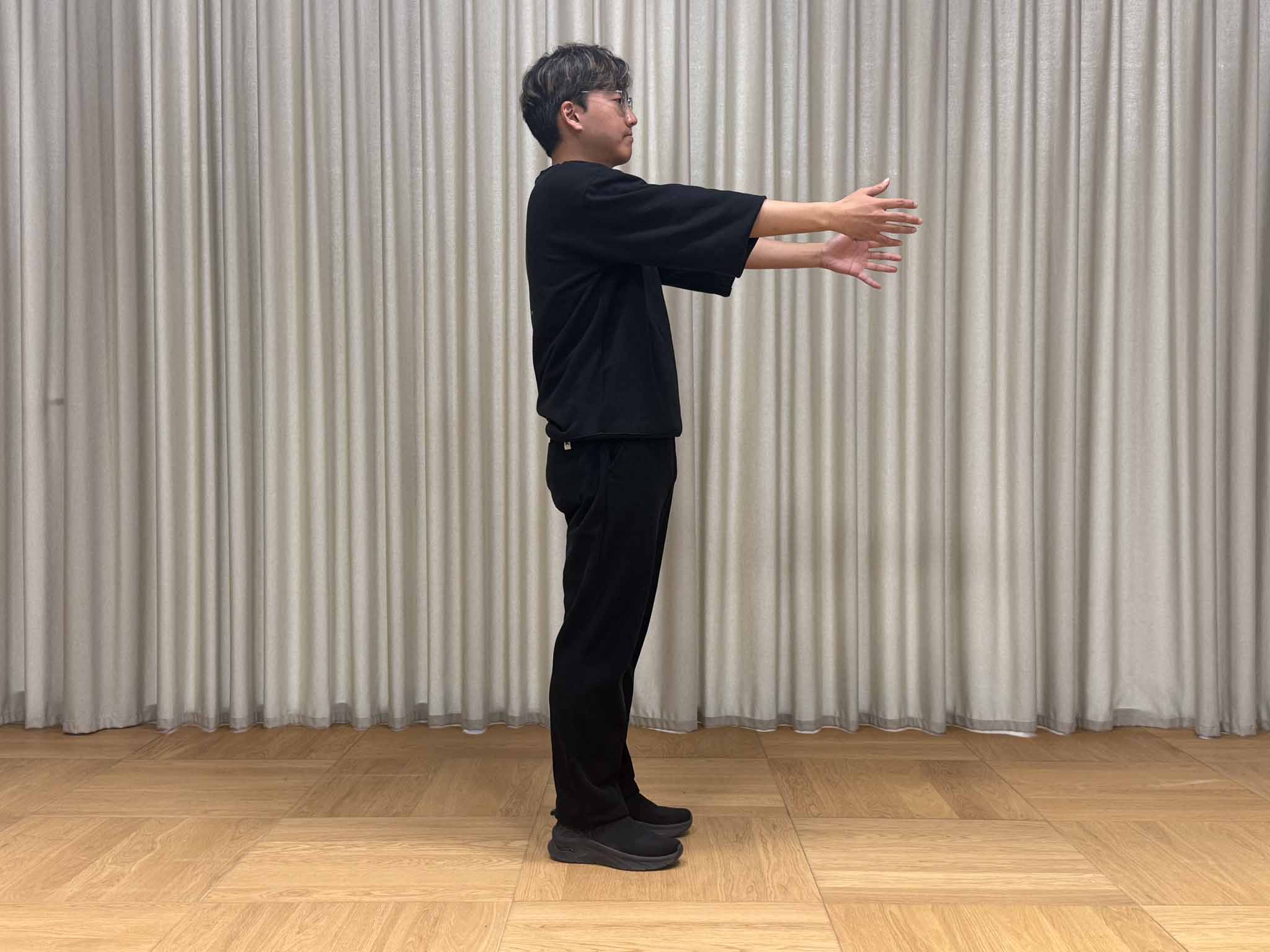
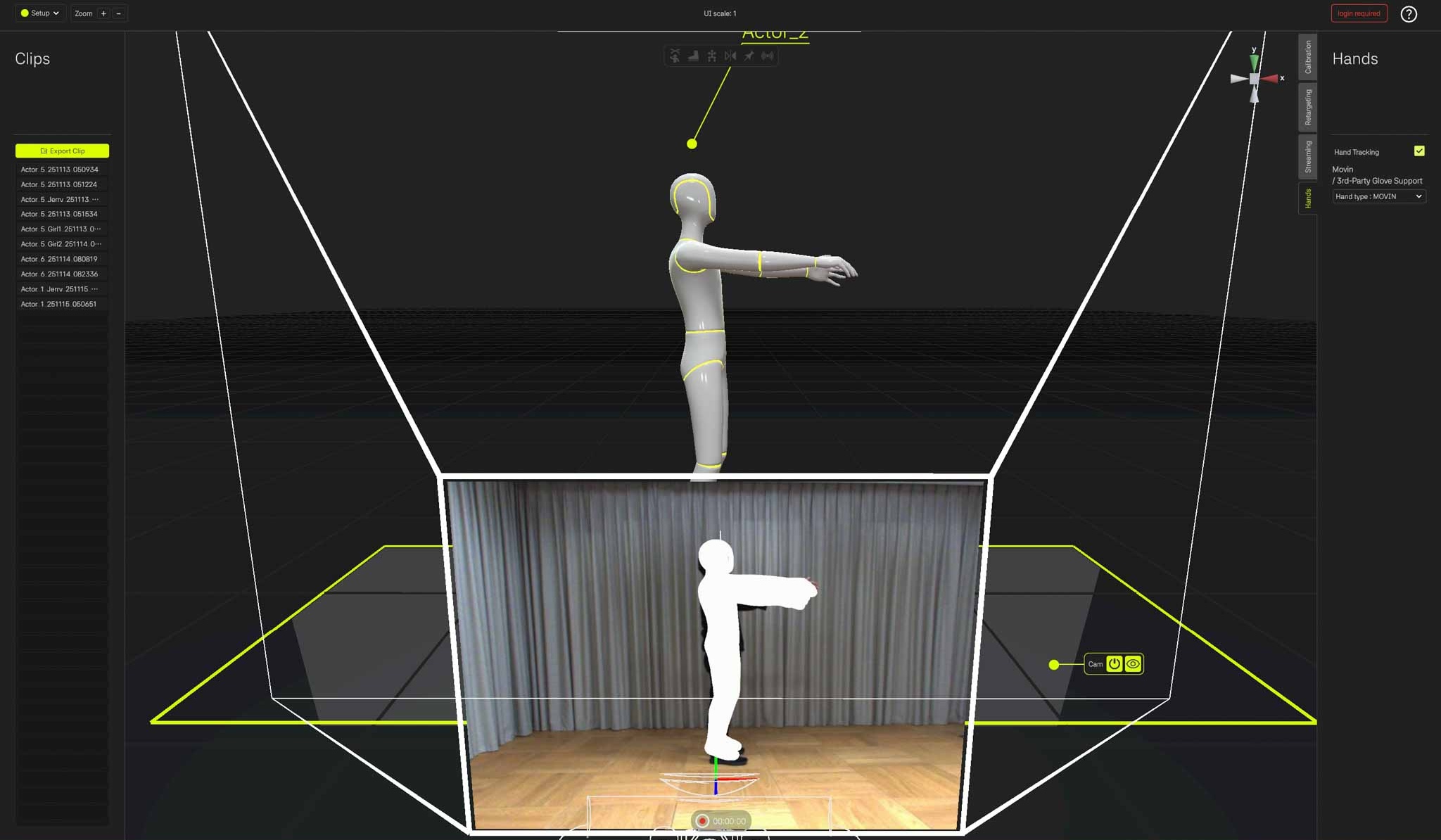
As shown in the left image, accurate tracking requires checking the Camera View in MOVIN Studio to ensure that the entire body, including the hands, remains within the camera’s FoV. Additionally, the hands must not be occluded by the body.
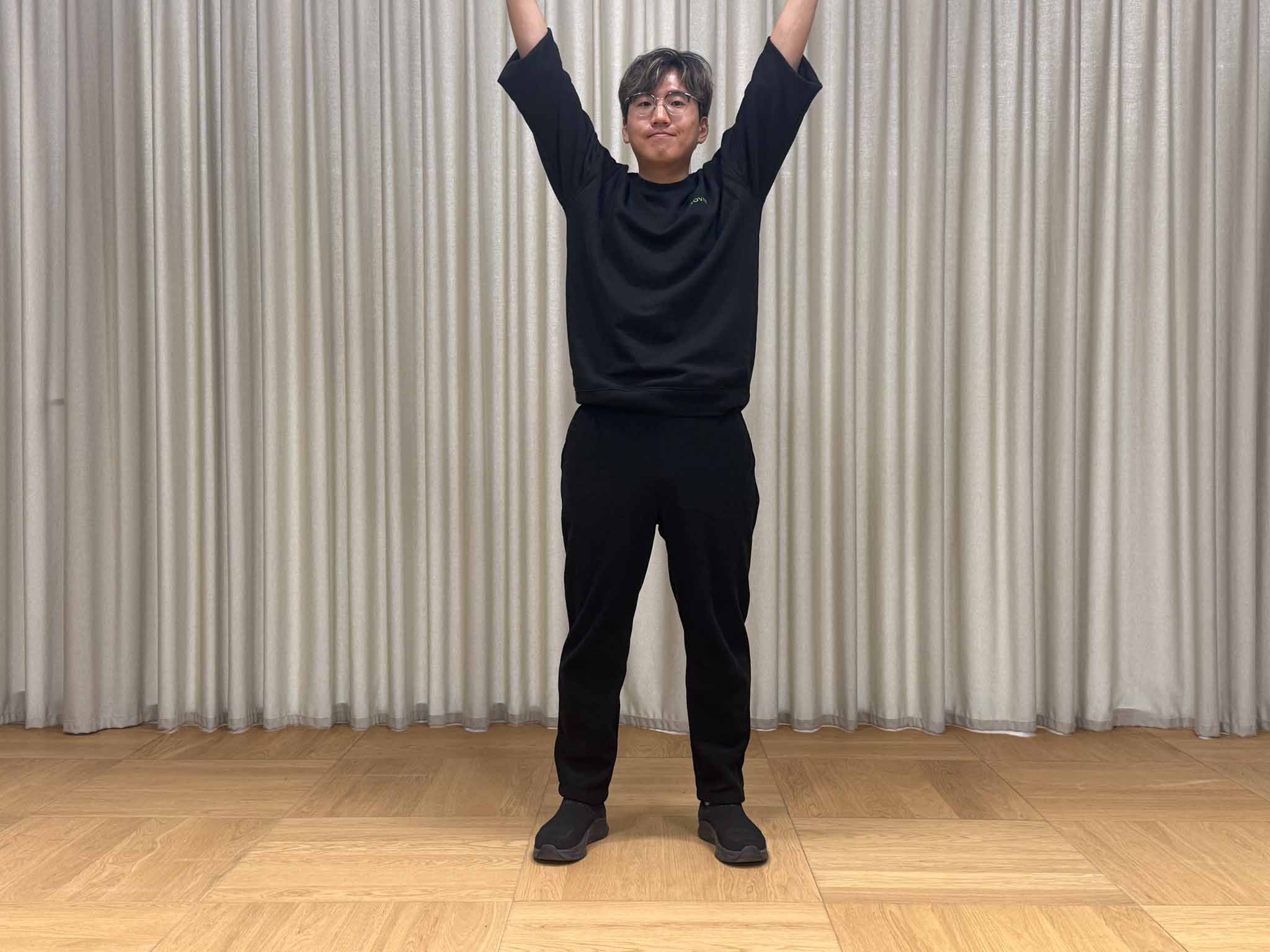
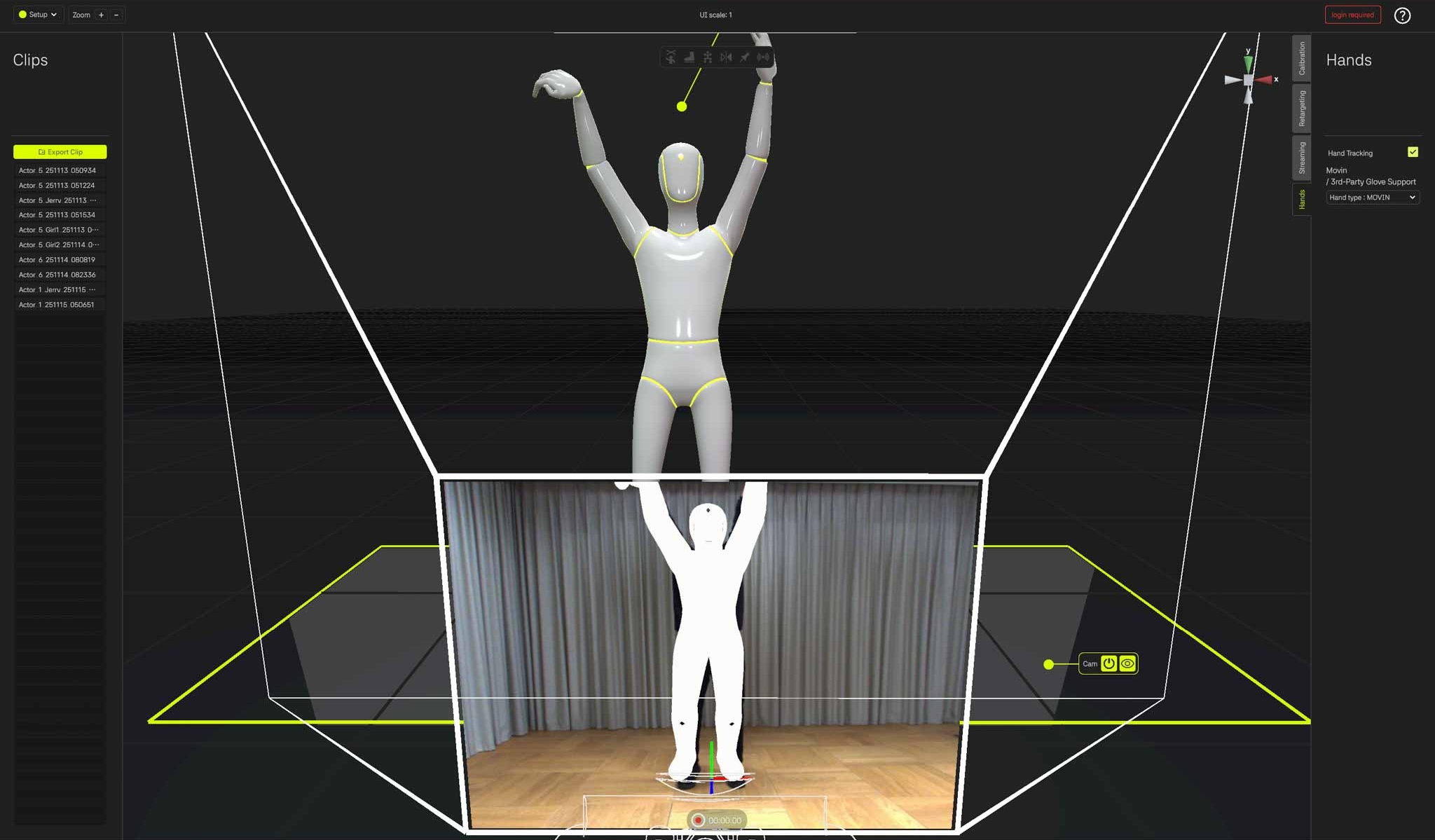
When the actor moves outside the FoV, the following behaviors may occur:
Arms or hands are not visible in the Camera View
Body parts located outside the FoV appear gray
Before using Hands Motion Capture, always verify that:
The full body and hands are within the FoV
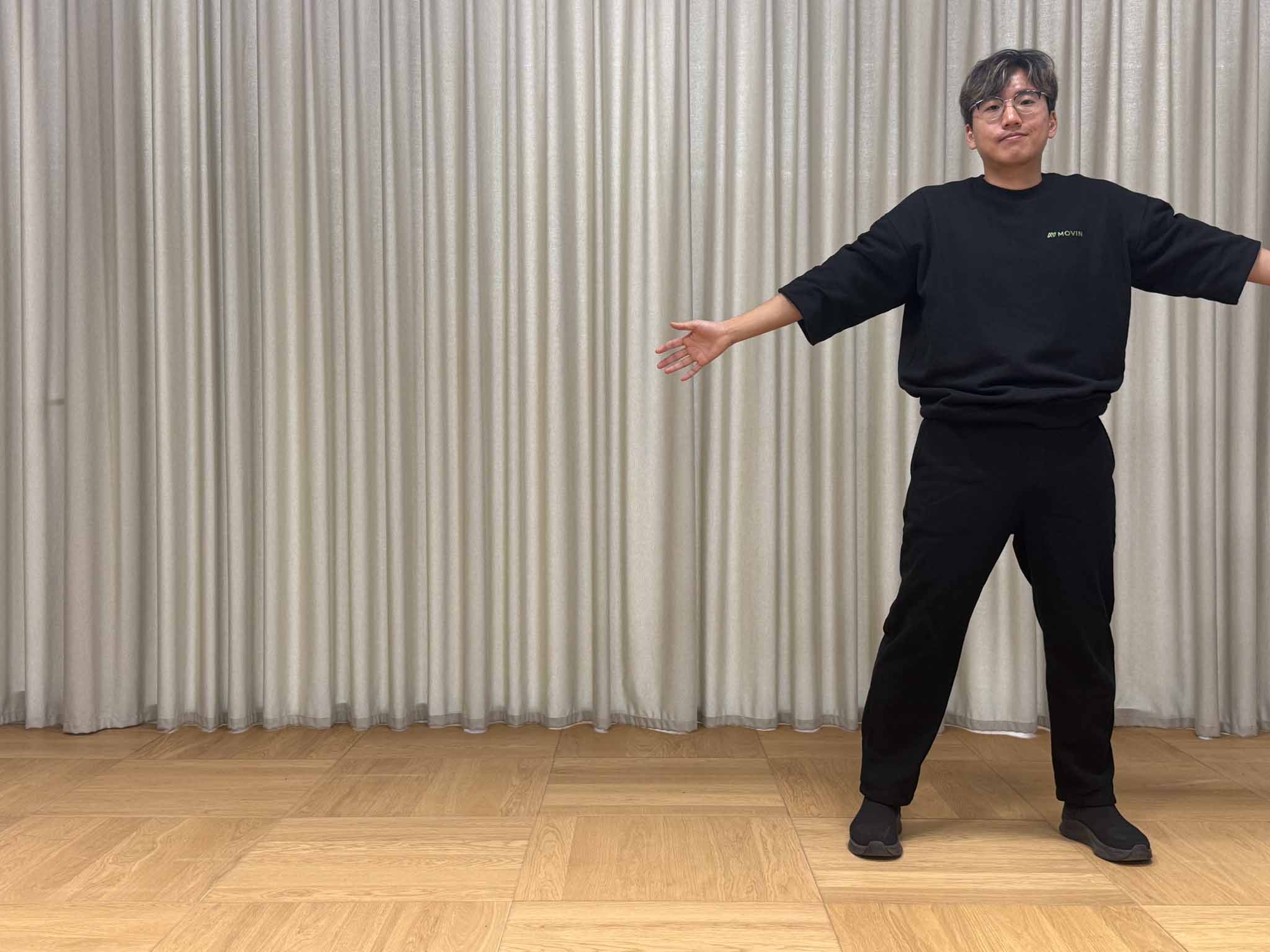
The hands are not obscured by other body parts
Cases Where Hands Leave the FoV or Become Occluded


Last updated