> For the complete documentation index, see [llms.txt](https://help.movin3d.com/llms.txt). Markdown versions of documentation pages are available by appending `.md` to page URLs; this page is available as [Markdown](https://help.movin3d.com/movin-tracin/installation-and-setup/movin-tracin-firmware-update.md).
# MOVIN TRACIN Firmware Update
{% hint style="success" %}
If your current MOVIN TRACIN firmware is v2.9.7 or later but earlier than v3.2.0, please follow the [MOVIN Studio & MOVIN TRACIN v3.2.0 Update Instructions](/movin-tracin/miscellaneous/movin-studio-and-movin-tracin-v3.2.0-update-instruction.md) to update to v3.2.0 or later.
{% endhint %}
MOVIN TRACIN is an on-device system, meaning all AI processing is performed directly on the device. To ensure stable performance and improve motion capture quality, please update your MOVIN TRACIN firmware by following the instructions below.
* If your firmware is v3.2.0 or later: Refer to [#if-the-firmware-is-v2.9.7-and-later](#if-the-firmware-is-v2.9.7-and-later "mention") guide and update your firmware to the latest version using the online update method.
* If your firmware is between v2.9.7 and v3.1.0: Refer to the [MOVIN Studio & MOVIN TRACIN v3.2.0 Update Instructions](/movin-tracin/miscellaneous/movin-studio-and-movin-tracin-v3.2.0-update-instruction.md) guide and update your firmware to v3.2.0 or later.
* If your firmware is v2.3.0-1: Refer to [#movin-tracin-firmware-v2.9.7-download](#movin-tracin-firmware-v2.9.7-download "mention") guide and update your firmware to v2.9.7.
* If your firmware is earlier than v2.3.0-1: Refer to [#movin-tracin-firmware-v2.3.0-1-download](#movin-tracin-firmware-v2.3.0-1-download "mention") guide and update your firmware to v2.3.0-1.
## If the firmware is v2.9.7 and later
{% stepper %}
{% step %}
### Connect MOVIN TRACIN to your computer.
* Please refer to [MOVIN TRACIN Setup](/movin-tracin/installation-and-setup/movin-tracin-setup.md) and [Step 1. Connect Device](/movin-tracin/installation-and-setup/step-1.-connect-device.md) to connect your MOVIN TRACIN to your computer.
* Make sure that the indicator on the front of MOVIN TRACIN is solid.
* If the indicator does not light up or continues to blink, **disconnect the power cable and reconnect it**. This process resets temporary boot errors, and most power-related issues can be resolved this way.
{% endstep %}
{% step %}
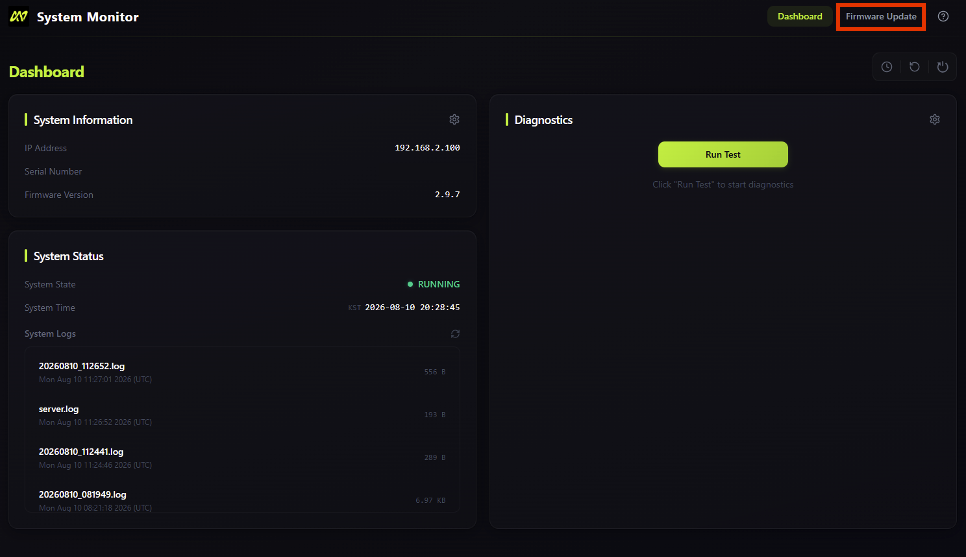
### Access the System Monitor page, and click 'Firmware Update' tab.
* Once you have confirmed that the device is operating properly, open your web browser and enter [**192.168.2.100:8001/fw**](http://192.168.2.100:8001/fw) in the address bar to access the 'Firmware Update' tab on the System Monitor page.
* Alternatively, open the [System Monitor](http://192.168.2.100:8001/) page and click the 'Firmware Update' tab in the upper-right corner.
* If you do not see the 'Firmware Update' tab:
1. Check that your **firmware is v2.9.7 or later**.
* If your firmware is earlier than v2.9.7, refer to [#if-the-firmware-is-earlier-than-v2.9.7](#if-the-firmware-is-earlier-than-v2.9.7 "mention") and update your firmware to v2.9.7 first.
2. Perform a hard refresh of your browser by pressing **Ctrl + Shift + R**.
{% endstep %}
{% step %}
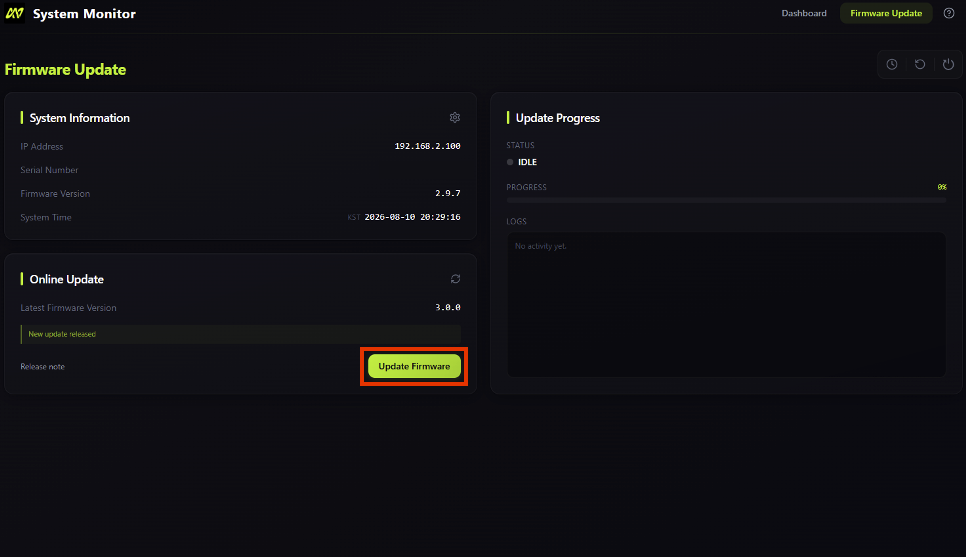
### Click the 'Update Firmware' button in the Online Update tab.
* Check the Latest Firmware Version displayed in the Online Update tab.
* If Failed to fetch is displayed instead of the latest firmware version, make sure your **computer is connected to the internet**.
* Then, click 'Update Firmware' to begin the firmware update.
{% endstep %}
{% step %}
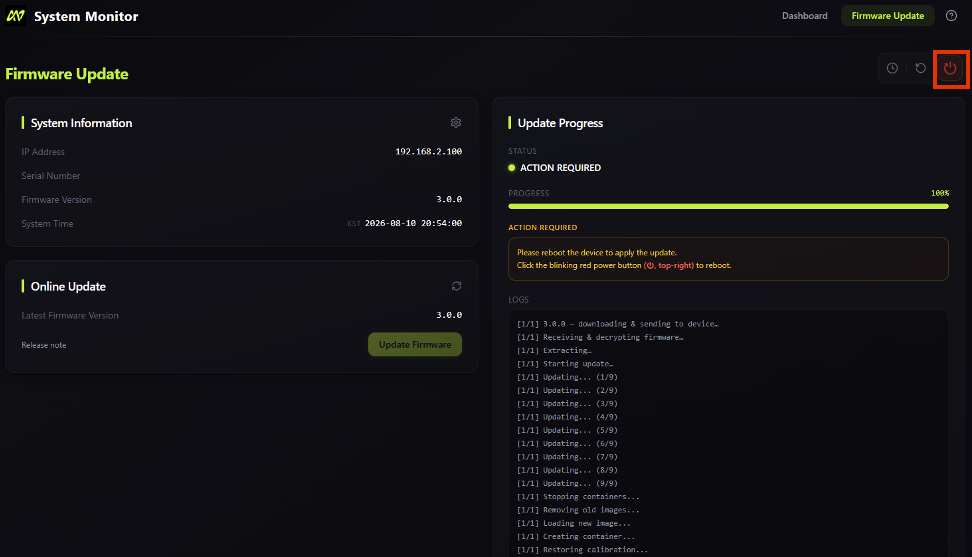
### Wait until the firmware update is complete, and click 'Reboot System' to restart the device.
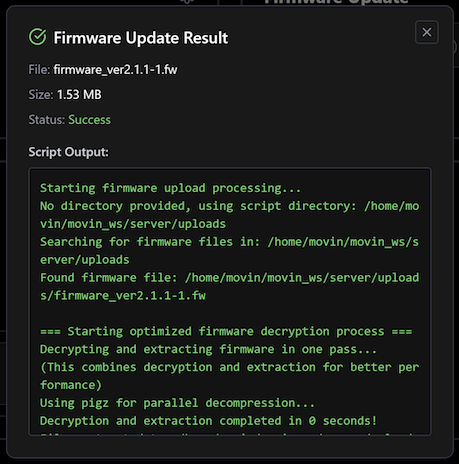
* Please wait **without performing any other actions** until a Success or Failure message appears.
* **While the firmware update is in progress, do not refresh or close the System Monitor page. Do not disconnect the power or Ethernet cable.** Closing the page or disconnecting any cables during the update may prevent the update from completing properly and may cause the device to malfunction.
* If the firmware update is successful, click 'Reboot System' in the upper-right corner to restart the device.
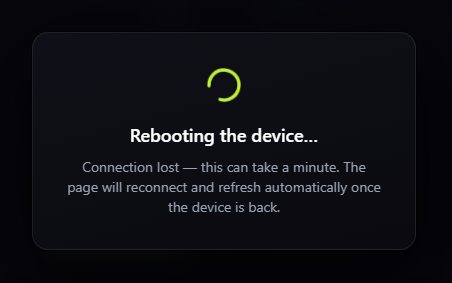
* After clicking 'Reboot System' button, the System Monitor page will automatically refresh until the device reconnects. Please remain on this page and wait for the process to complete.
* The firmware update is complete when the indicator light on the front of the device turns **solid green** without blinking.
* Check the Firmware Version in the System Information panel to confirm that the device has been updated to the desired version.
{% hint style="warning" %}
If the firmware update continues to fail,\
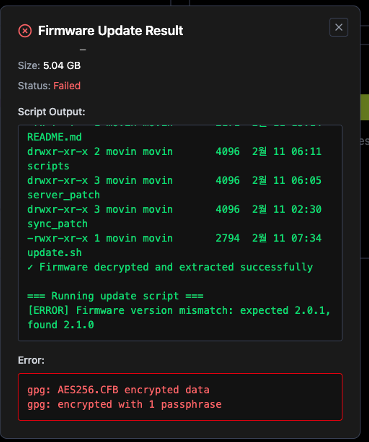
copy the full log and contact us at **** for assistance.
{% endhint %}
{% endstep %}
{% endstepper %}
## If the firmware is earlier than v2.9.7
{% stepper %}
{% step %}
### Download the Firmware File.
Please download the firmware file from the Google Drive link below.
#### **MOVIN TRACIN Firmware v2.9.7 Download**
{% hint style="warning" %} **Firmware v2.9.7 can only be installed from Firmware v2.3.0-1.**\
If your device is not currently running Firmware v2.3.0-1, please follow the [#movin-tracin-firmware-v2.3.0-1-download](#movin-tracin-firmware-v2.3.0-1-download "mention") to update it to v2.3.0-1 first.
{% endhint %}
{% embed url="" %}
#### **MOVIN TRACIN Firmware v2.3.0-1 Download**
{% hint style="warning" %}
Firmware v2.3.0-1 can be updated directly from any firmware version.
{% endhint %}
{% embed url="" %}
{% endstep %}
{% step %}
### Connect MOVIN TRACIN to your computer.
* Please refer to [MOVIN TRACIN Setup](/movin-tracin/installation-and-setup/movin-tracin-setup.md) and [Step 1. Connect Device](/movin-tracin/installation-and-setup/step-1.-connect-device.md) to connect your MOVIN TRACIN to your computer.
* Make sure that the indicator on the front of MOVIN TRACIN is solid.
* If the indicator does not light up or continues to blink, **disconnect the power cable and reconnect it**. This process resets temporary boot errors, and most power-related issues can be resolved this way.
{% endstep %}
{% step %}
### Access the System Monitor page.
* Once you’ve confirmed that the device is operating normally, open your internet browser and go to [**192.168.2.100:8001**](http://192.168.2.100:8001/) to access the System Monitor page.
{% endstep %}
{% step %}
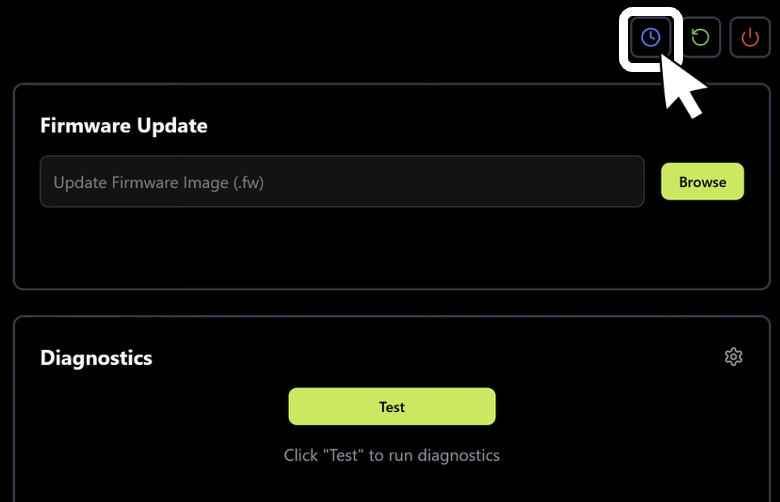
### Click the "Set Current Time" button.
* Click the blue "Set Current Time" button located in the top-right corner of the System Monitor page to synchronize the device’s time with the current time.
{% endstep %}
{% step %}
### Upload the Firmware File.
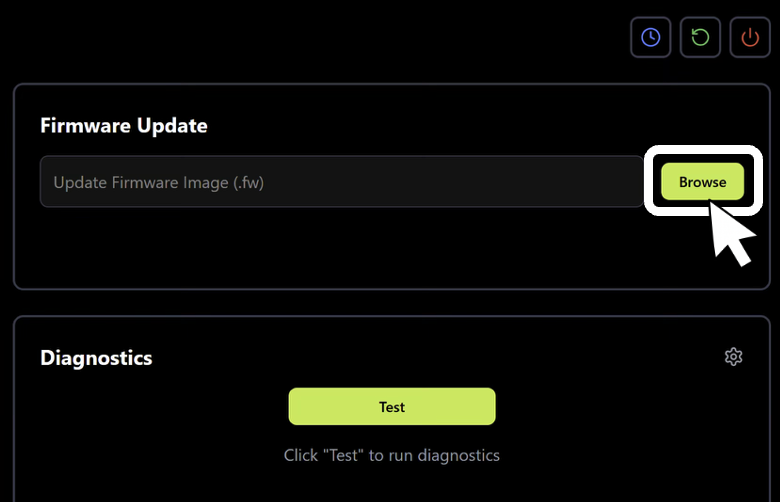
* Click the **"Browse"** button in the Firmware Update panel located at the top-right of the System Monitor page.
* Select the downloaded firmware file, then click the **"Upload"** button to proceed with the upload.
{% endstep %}
{% step %}
### Wait until the Firmware Update is complete.
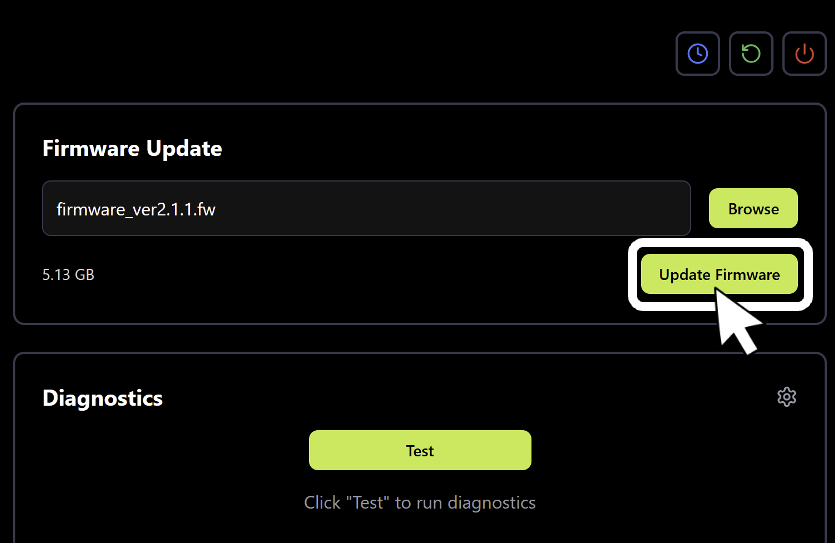
* Click the **"Update Firmware"** button in the Firmware Update panel located at the top-right of the System Monitor page.
* Then, **wait without any additional actions** until a Success or Failure popup appears.
* **During the firmware update, do not refresh or close the System Monitor page, or disconnect the power cable or Ethernet cable until the Success popup is displayed.** If the page is closed or cables are disconnected, the update may not complete properly and the device may not function correctly.
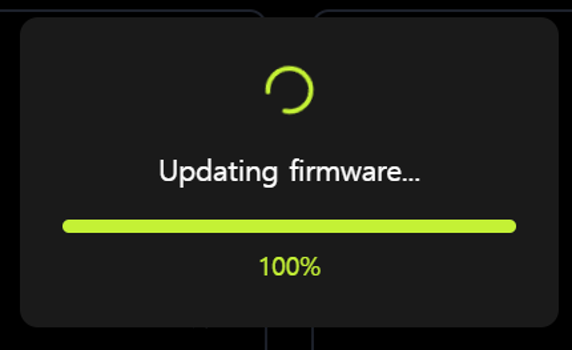
* The firmware update may take more than 5 minutes, and **it may appear unresponsive even after the progress reaches 100%.** The update is still in progress, so please wait without taking any further action.
The update is still in progress even the progress reaches 100%, so please wait.
{% hint style="warning" %}
If a Failure popup appears during the update, please copy the full log and contact ****. We will assist you as quickly as possible.
{% endhint %}
{% endstep %}
{% step %}
### Refresh the System Monitor page and Reboot the Device
* Refresh the System Monitor page to check whether the firmware has been updated.
* If the Firmware Version in the System Information panel matches the desired version, the update has been successfully completed.
* Disconnect the power cable from the device, wait for a moment, and then reconnect it to restore power.
* If the front indicator shows a solid **green** light, the firmware update has been completed successfully.
{% hint style="warning" %}
After updating with the firmware to v2.3.0-1 or v2.9.7 and re-power the MOVIN TRACIN device, **the front indicator light may not turn on**. If you are still able to access the System Monitor page, the device is operational, so please proceed with updating the firmware.
{% endhint %}
{% endstep %}
{% endstepper %}
---
# Agent Instructions
This documentation is published with GitBook. GitBook is the documentation platform designed so that both humans and AI agents can read, navigate, and reason over technical content effectively. Learn more at gitbook.com.
## Querying This Documentation
If you need additional information that is not directly available in this page, you can query the documentation dynamically by asking a question.
Perform an HTTP GET request on the current page URL with the `ask` query parameter, and the optional `goal` query parameter:
```
GET https://help.movin3d.com/movin-tracin/installation-and-setup/movin-tracin-firmware-update.md?ask=&goal=
```
`ask` is the immediate question: it should be specific, self-contained, and written in natural language.
`goal` is optional and describes the broader end goal you are ultimately trying to accomplish on behalf of the user. GitBook uses it to tailor the answer towards what is most useful for that goal.
The response will contain a direct answer to the question and relevant excerpts and sources from the documentation.
Use this mechanism when the answer is not explicitly present in the current page, you need clarification or additional context, or you want to retrieve related documentation sections.